Five questions. Switch something off and its steps disappear.
A Vercel account that owns the project, and access to its Neon database and Blob store (managed from Vercel).
A Sevalla account with a company that has a payment method (add one on the Billing page).
Your code in a repository on GitHub, GitLab or Bitbucket. Sevalla deploys from Git, not from a folder.
A developer or an AI assistant for and for the database copy. They need the PostgreSQL command-line tools (pg_dump and pg_restore), at the newer of the two servers' major versions or newer (for a Neon database on 18, that means 18). Sevalla's page Import and export PostgreSQL says how to get them.
Access to your domain's DNS settings.
A quiet moment for the maintenance window.
How Vercel maps to Sevalla
On Vercel
On Sevalla
Project
Application, built from your Git repository; it runs next build and then next start
Functions, middleware, edge routes
The application's web process (one long-running server per instance)
Function region (iad1 by default)
A location; Ashburn, USA is next to iad1 (companies on Google Cloud see it as Ashburn, Virginia)
Vercel keeps serving your site until the very last step.
Bold text in the steps is the exact label on screen. Where something needs a terminal, the step says so and you can hand it to a developer or an AI assistant.
Restore the data before the first deploy.
next build reads your database to prerender pages. If the database is empty when you deploy, the build fails. So you create the application early but do not deploy it until says so.
Use size S1 or larger if you will move a custom domain.
The smallest size, H1, can't have one.
Verify your domain before the maintenance window. Point DNS only after the data is copied and the checks pass.
Verifying changes nothing for your visitors. Pointing is the moment traffic moves. One exception, because your DNS is on Cloudflare: see .
Check your database version first.
A Neon database created through Vercel runs PostgreSQL 18 today. Sevalla's docs ask for a database on the same major version or newer, and for client tools at least as new as the newer of the two servers. Sevalla's version list depends on the location. If it doesn't reach your version yet, use the newest one it offers. In our test, a version-18 dump loaded cleanly into PostgreSQL 17 for the example shop, but that goes beyond what Sevalla's docs promise and isn't guaranteed for every schema: pg_restore prints an error if it can't, and Sevalla support can help.
Run the URL rewrite again after every restore.
Your database stores full file addresses on Vercel's domain. Restoring a copy of it puts the old addresses back.
Without a custom domain your app lives at its free sevalla.app address and nothing on your visitors' side changes.
The basics
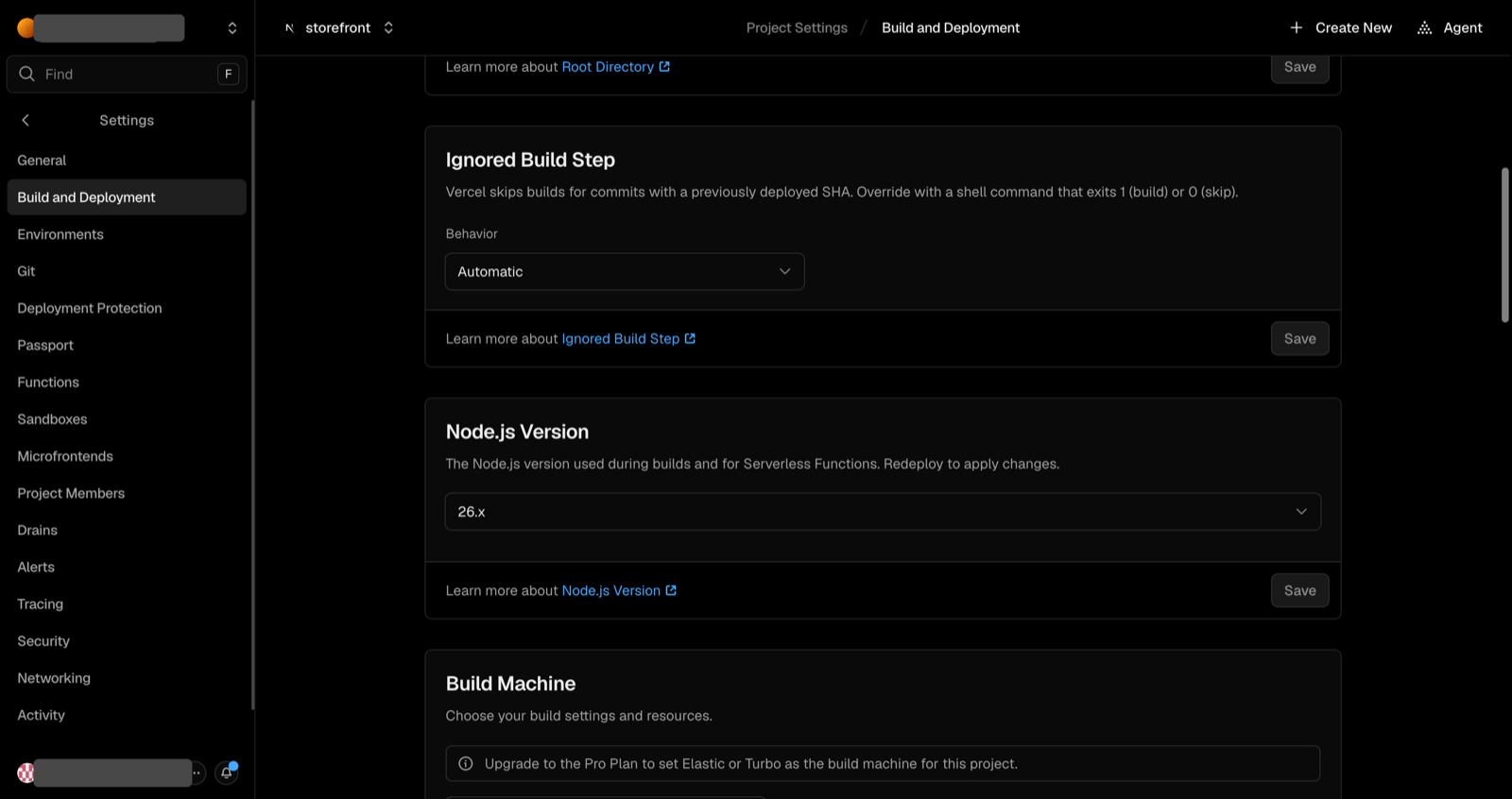
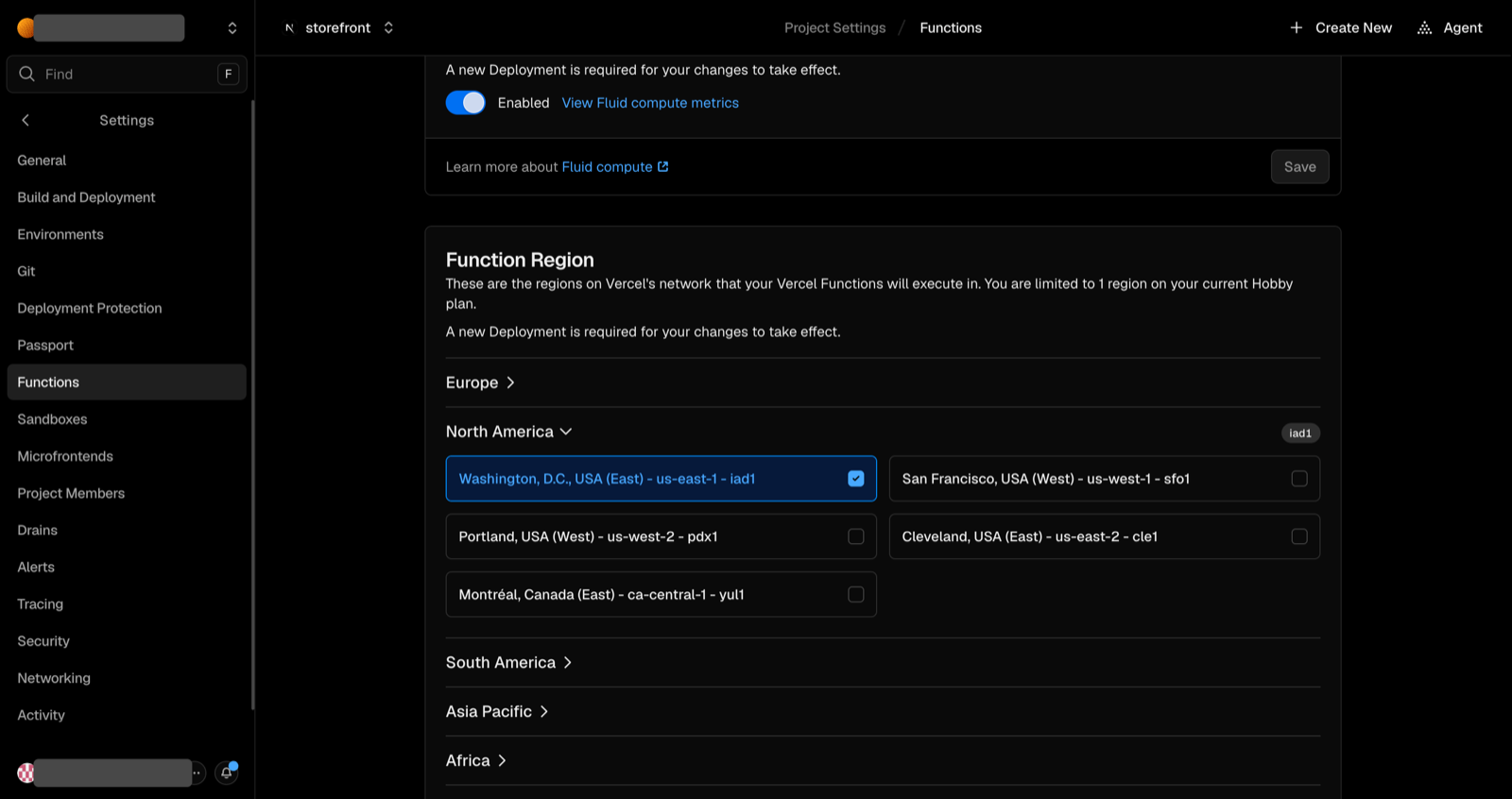
Open your project in Vercel. Click Settings, then Build and Deployment: note the Node.js Version. Then click Functions and expand the region group: note the function region. The default, Washington, D.C., USA (East) - us-east-1 - iad1, is next to Sevalla's Ashburn, USA (companies on Google Cloud see Ashburn, Virginia). Choose the Sevalla location closest to yours; you will need the Node.js version in .
Settings, Build and Deployment: the Node.js Version.
Settings, Functions: the function region, here Washington, D.C. (iad1).
Environment variables
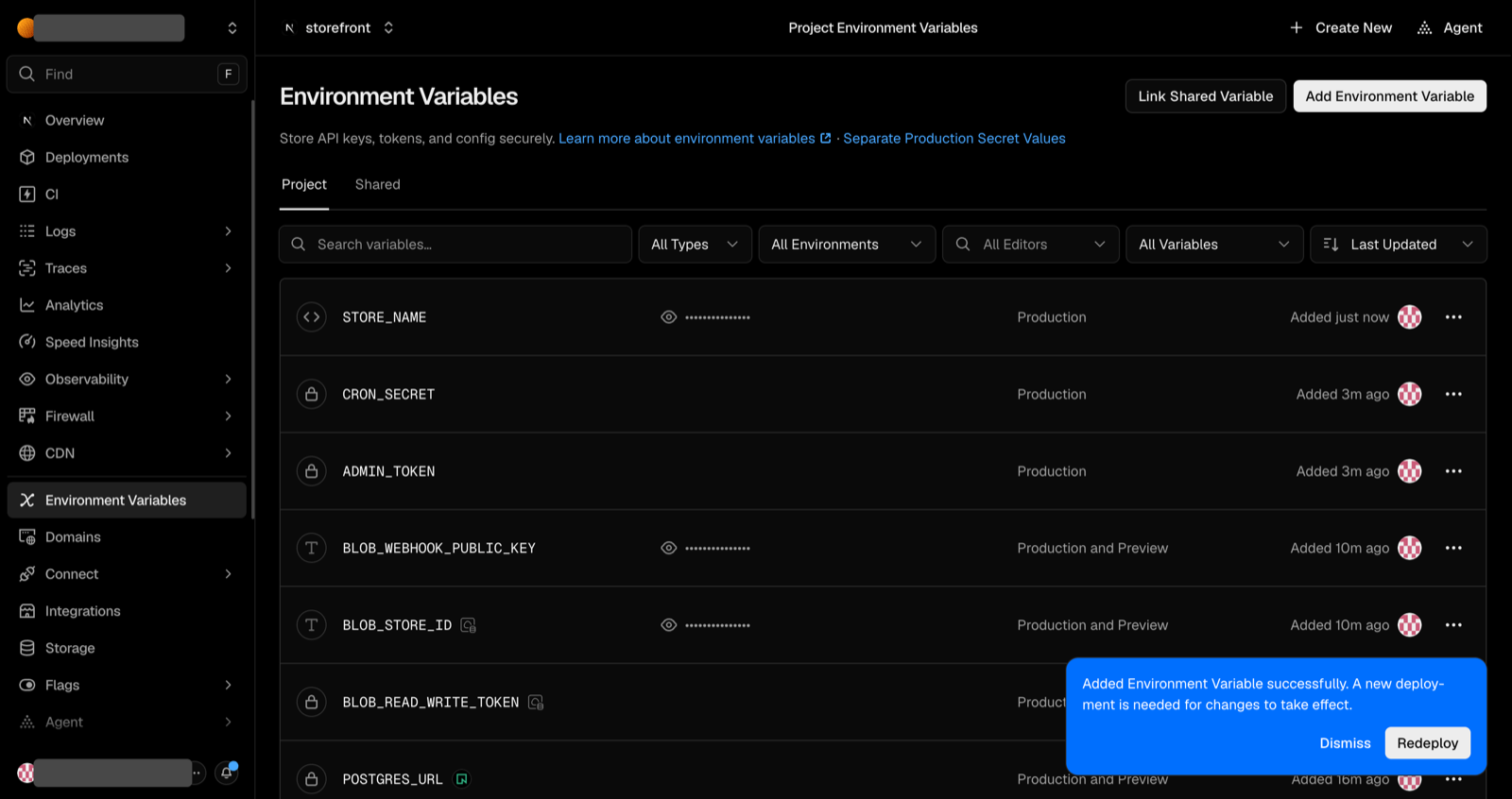
Click Environment Variables in the project's sidebar. Write down each variable's name and where its value comes from. The dashboard has no export button (the Vercel CLI's vercel env pull does; see the original guide), so you copy values one by one:
Plain (Config) variables can be read: click the eye icon, or ⋯ then Copy to Clipboard.
Secret variables (also called Sensitive, with a lock icon) can't be shown or copied. Find the value where you keep it, or plan to make a new one (a long random string from a password generator works for tokens and secrets).
The variables a Marketplace integration added (DATABASE_URL and the PG*, POSTGRES_* and NEON_* ones, and BLOB_* for Blob) are not copied. Sevalla creates its own.
Environment Variables: the integration's variables and your own.
Cron jobs
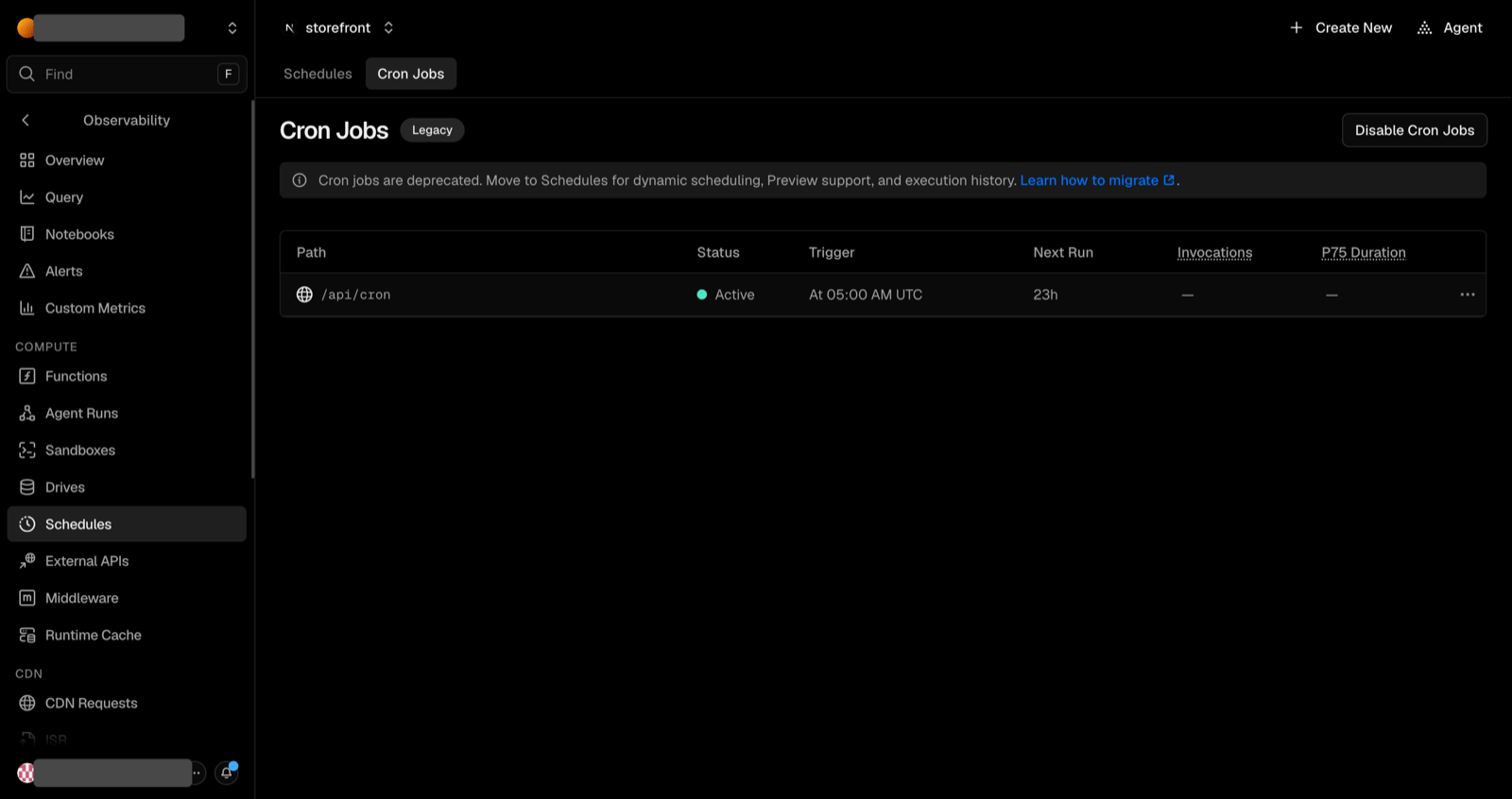
Open Observability, then Schedules, then Cron Jobs (Vercel marks this page Legacy, but your job is still listed there as active). Note each job's Path and schedule. Your repository's vercel.json lists the same jobs, plus any redirects, rewrites and headers you will move in .
Cron Jobs: the path and the schedule of each job.
Domains
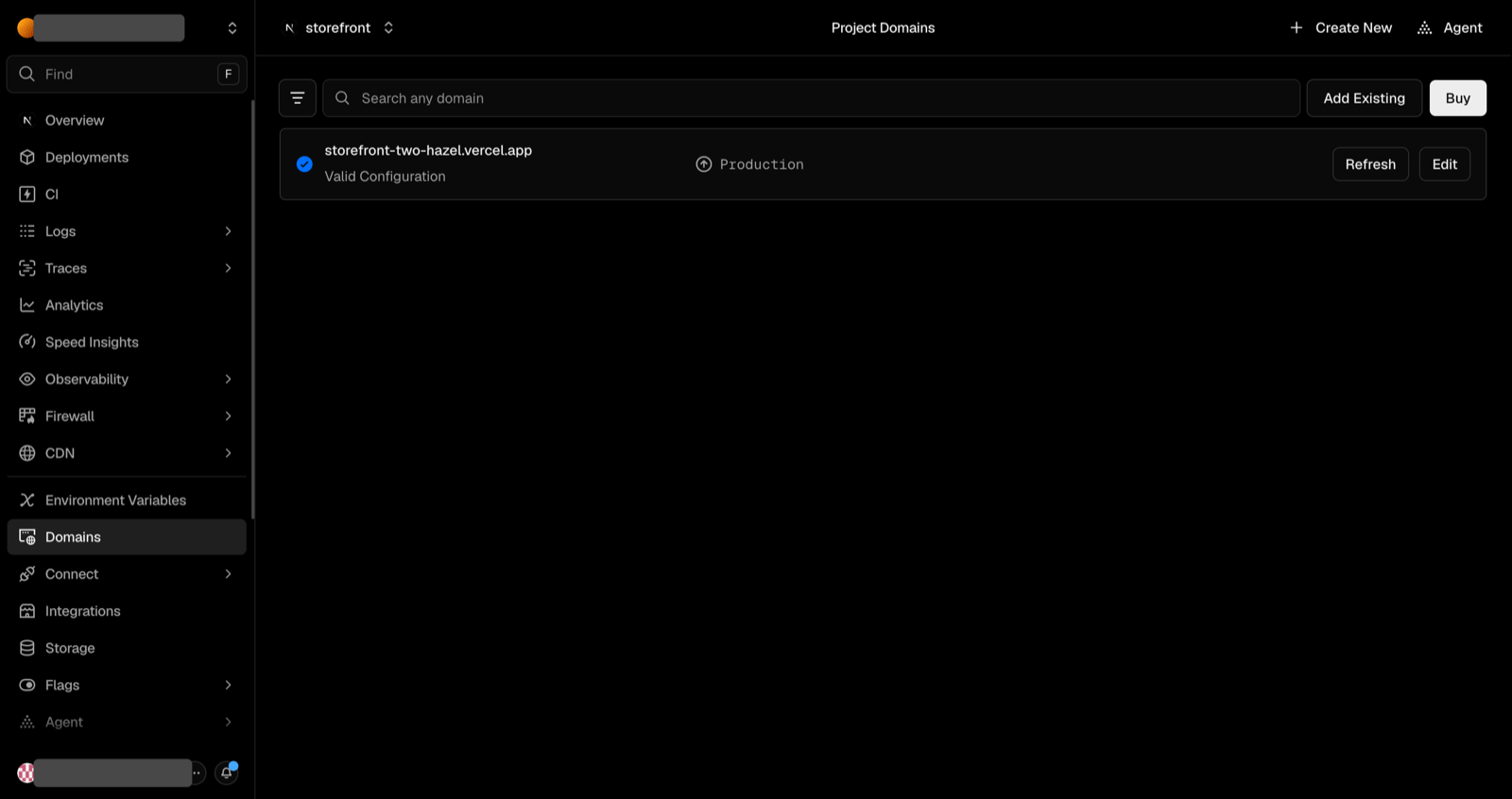
Click Domains in the project's sidebar and note every domain, and where its DNS is managed (your registrar, or Vercel's nameservers).
The project's Domains page.
Database and Blob store
Click Storage in the project's sidebar. Your Neon database and your Blob store are listed there.
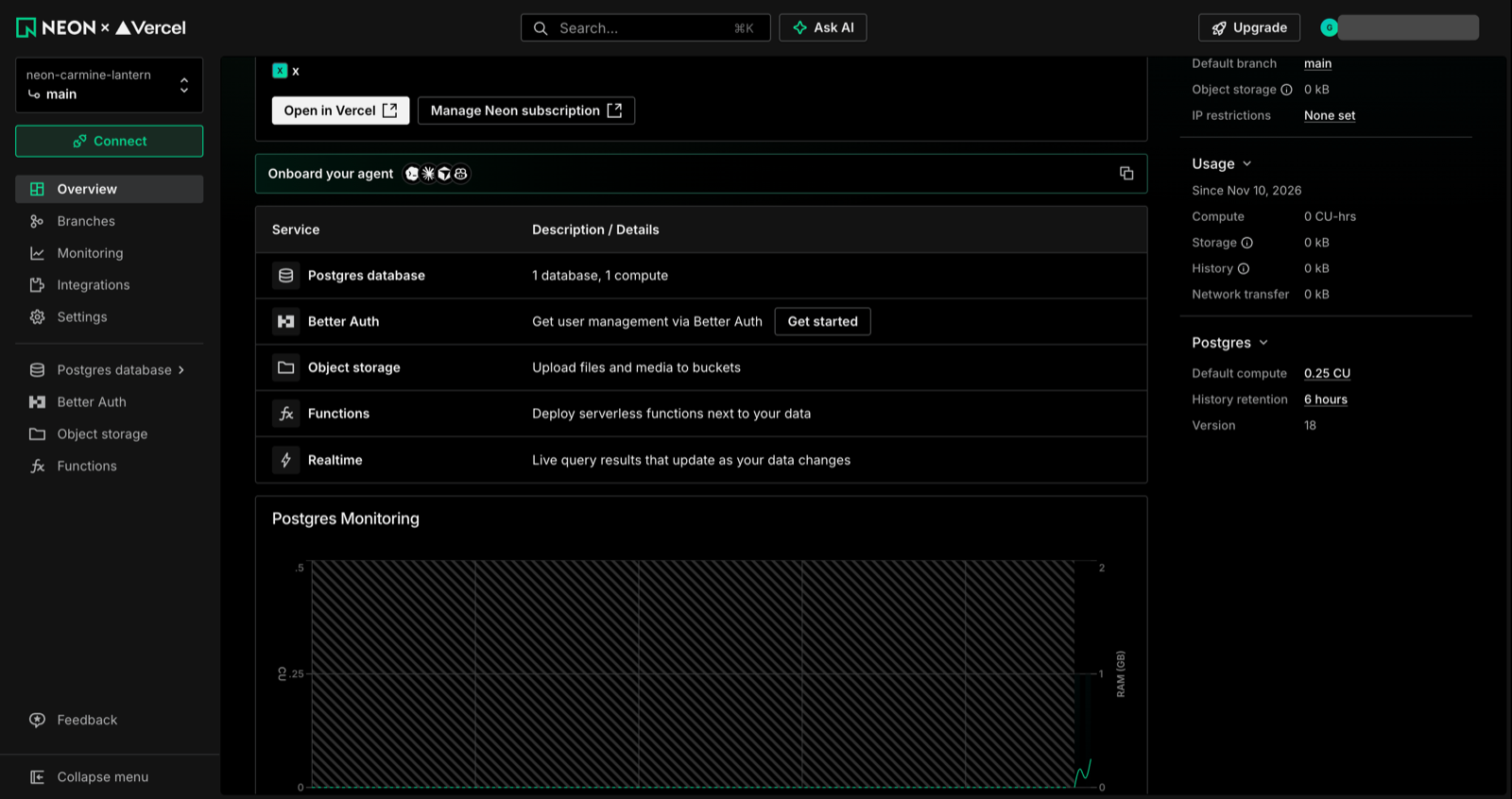
Neon: open the database, then click Open in Neon. The first time, Neon asks you to confirm your email address before it opens the console. On the Branch overview, find Postgres and note its Version. That number decides your Sevalla database version (see ).
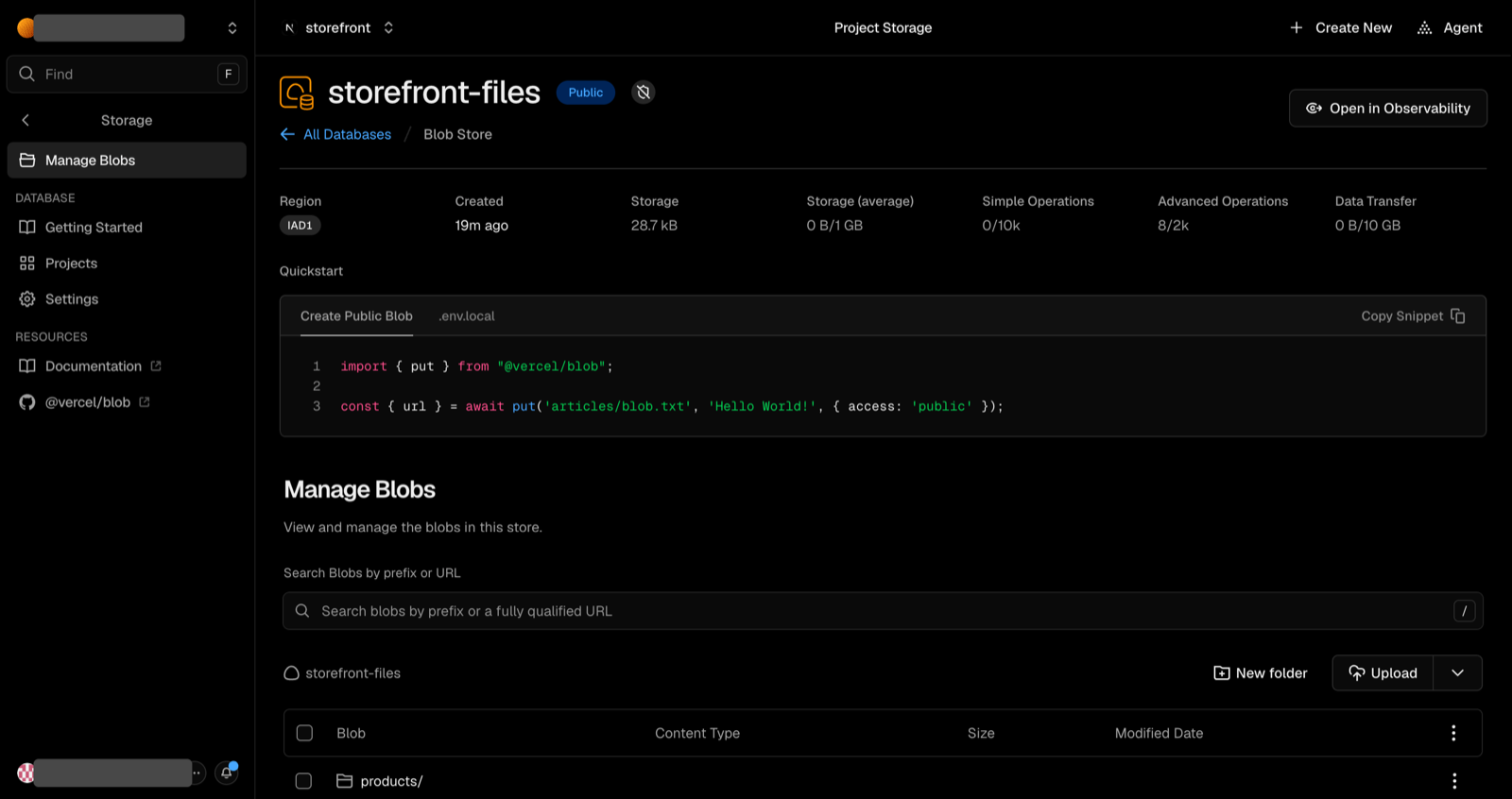
Blob: open the store (click Browse data) and note its name, whether it is Public or Private, and its files. The file browser there is Manage Blobs; Vercel shows the total size but not a file count, so open the folders.
Neon's Branch overview: Postgres version 18.
The Blob store's file browser, Manage Blobs.
Find the Vercel code in your project
Ask your developer or assistant to search the code for anything that only works on Vercel: imports of @vercel/blob, @vercel/functions, @vercel/kv, @vercel/postgres, @vercel/edge-config and @neondatabase/serverless (your Git host's code search also finds them). The next step changes every one of them.
Hand this step to a developer or an AI assistant.
Each change replaces something that only Vercel provides. They change package-lock.json, which is why this isn't a dashboard job. Make them on a new branch, here called sevalla.
Switch the database driver
The Neon serverless driver (@neondatabase/serverless) sends queries over HTTP to Neon's proxy, which a Sevalla PostgreSQL database doesn't have. Postgres.js has the same tagged-template API, so only the import changes. Code that already uses a standard PostgreSQL driver, such as pg, only needs the new DATABASE_URL.
-import { neon } from "@neondatabase/serverless";+import postgres from "postgres";-export const sql = neon(process.env.DATABASE_URL!);+export const sql = postgres(process.env.DATABASE_URL!);
Move uploads from Vercel Blob to the S3 API
Replace put() from @vercel/blob with the AWS SDK's PutObjectCommand, and build the file's address from the bucket's public domain. crypto.randomUUID() keeps names unique, as addRandomSuffix did. For the other Blob calls, list() becomes ListObjectsV2Command, del() becomes DeleteObjectCommand, and a private file's get() becomes a presigned URL.
geolocation() and ipAddress() read headers that only Vercel sets. Every request to Sevalla passes through Cloudflare, which sets CF-IPCountry and CF-Connecting-IP. Cloudflare sends the country only, not a city or a region. Then run npm uninstall @vercel/functions. See Sevalla's Request headers.
proxy.ts
import { NextResponse, type NextRequest } from "next/server";
-import { geolocation } from "@vercel/functions";
export function proxy(request: NextRequest) {
if (request.nextUrl.pathname.startsWith("/account") && !request.cookies.has("session")) {
return NextResponse.redirect(new URL("/", request.url));
}
const response = NextResponse.next();
- response.headers.set("x-visitor-country", geolocation(request).country ?? "unknown");+ response.headers.set("x-visitor-country", request.headers.get("cf-ipcountry") ?? "unknown");
return response;
}
Move the vercel.json rules into next.config.ts
Sevalla doesn't read vercel.json. Its redirects, rewrites and headers have the same fields in next.config.ts: copy each list into a function, then delete vercel.json (on this branch only). Add the bucket's domain to images.remotePatterns in place of Vercel Blob's. permanent: true answers 308, as on Vercel. A redirect from one domain to another, which you set in Vercel's domain settings rather than in vercel.json, becomes a redirect with a has host condition.
A Vercel Cron Job sends a GET request to a path, with Authorization: Bearer <CRON_SECRET>. A Sevalla cron job runs a command instead, so this script sends the same request to your web process. Your route keeps its CRON_SECRET check. Vercel also sends an x-vercel-cron-schedule header; if your route reads it, pass the schedule another way.
scripts/cron.mjs
// Calls a route the way Vercel Cron Jobs do: GET with the CRON_SECRET as a bearer token.
const response = await fetch(new URL(process.argv[2], process.env.APP_URL), {
  headers: { authorization: `Bearer ${process.env.CRON_SECRET}` },
});
console.log(response.status, await response.text());
if (!response.ok) process.exit(1);
Check, commit and push
Node.js version. Sevalla's builder, Ingot, uses Node.js 24 unless your project says otherwise: a .nvmrc or .node-version file, or engines.node in package.json (or an INGOT_NODE_VERSION variable that is Available during buildtime). If the version you noted in isn't 24, pin it.
Make sure nothing else imports a package you removed (the search from ): in our example project, a one-off seed route imported @vercel/blob and had to go before the build would pass. Then commit everything, package-lock.json included, and push the branch:
git checkout -b sevalla
git add -A
git commit -m "Move from Vercel to Sevalla"
git push -u origin sevalla
The assistant can
You still do
Create the application, database, bucket and cron job; connect the database; set environment variables; add your domain and tell you its DNS records; deploy; read build and runtime logs; run the cron job; turn on auto-deploy
The code changes (); everything on Vercel and Neon (including the pause); copying the data (the steps in the maintenance window); the DNS changes; the final checks in a browser
Sevalla's tools have no way to upload files to a bucket or to import a database dump, and they can't change your DNS or touch Vercel.
Connect your assistant
The server's address is https://mcp.sevalla.com/mcp. Sevalla's own pages say how to connect each assistant (Claude on desktop and web, Claude Code, Cursor, Codex, and others); follow the page for yours. Sign-in happens in your Sevalla dashboard: on the Authorize page you pick the company and set the permissions, then click Authorize.
Give it the smallest permissions that do the job.
The assistant can do exactly what the key behind the connection allows. A role such as Company admin lets it delete applications and databases, which you can't undo. Approving creates an API key named "Sevalla MCP …" under Tools, API keys; disable or delete it when you are done. Environment variable values and database passwords are never sent back to the assistant, but the bucket's access keys, command output and logs can contain secrets, so treat the conversation as private.
Prepare your list
Have two things ready: your code changes pushed on the sevalla branch (), and your own variables from . Leave out the Vercel and integration variables (VERCEL*, TURBO_*, NX_DAEMON, BLOB_*, DATABASE_URL, PG*, POSTGRES_*, NEON_*, VITE_NEON_*) and PORT, which Sevalla sets. Replace any value that contains your Vercel address with your sevalla.app address.
Give it this prompt
It follows your route and your names. Fill in the angle-bracket parts; the assistant does the rest. Change the location if your Vercel region isn't iad1.
Check its work
Not sure what an assistant did? Open the dashboard: everything it creates appears there, with the same labels as the dashboard steps. This table says which tool each step uses.
Step
Tool
Notes
Locations and sizes
get_platform_options
Returns the IDs the other tools need
Create the application
create_application with deploy: false
In our test the web process started at S1 (the dashboard form can start on H1): check with get_application, and if it says H1 raise it with scale_process (size_id, apply_now: false). Without deploy: false the application deploys at once, too early
Create and connect the database
create_database with connect_to_application_id
Creates the internal connection and stores the URL in DATABASE_URL (the default name), available at build time and runtime. Check the variable with list_environment_variables (it shows build and runtime) and readiness with get_database
Open the database to your computer
sevalla_api_update with toggleDatabaseExternalConnectionV3
Optional: you can also do it in the dashboard. The dump and restore are still yours
Create the bucket
sevalla_api_create with createObjectStorageV3 and public_access: true (or false)
The response has the public domain, endpoint, bucket name and keys
Environment variables
set_environment_variables
All variables in one call; values aren't echoed. Check with list_environment_variables
Cron job
sevalla_api_create with createProcessV3 (type cron)
Use the smallest size ID from get_platform_options
Domain
add_domain, then get_application
get_application lists the DNS records and any verification errors
sevalla_api_update with updateApplicationV3 and {"auto_deploy": true}
The dashboard steps for these jobs are left out of your route, because the assistant does them. Switch Setting up Sevalla back to the dashboard at the top if you'd rather click.
The PostgreSQL database
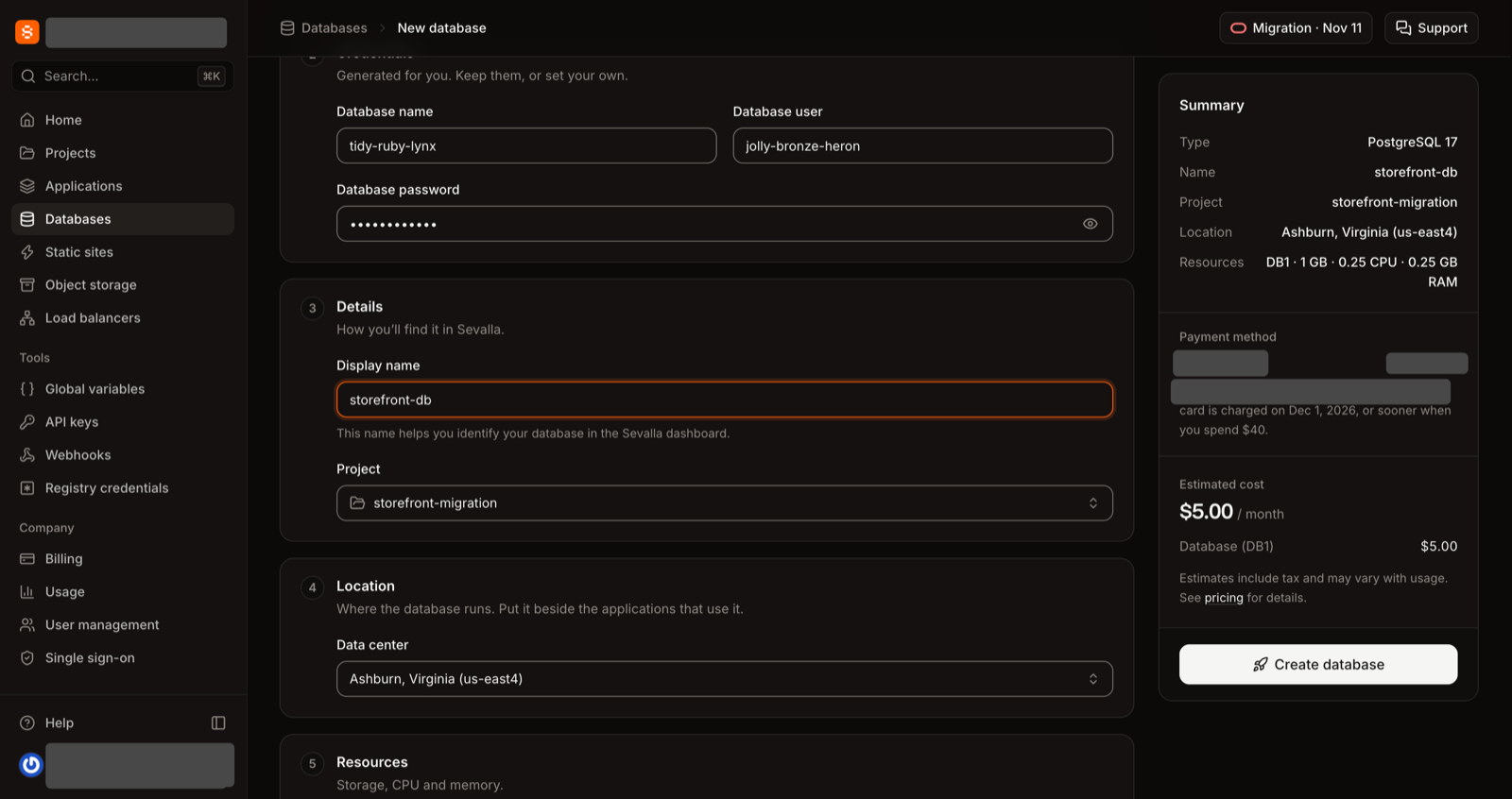
In the sidebar, click Databases, then Create database.
Under Database, choose PostgreSQL and a version (see ). If your data uses pgvector or PostGIS, also tick Enable pgvector extension or Enable PostGIS extension: you can only turn them on when you create the database. Keep the generated Credentials.
Under Details, enter storefront-db as the Display name.
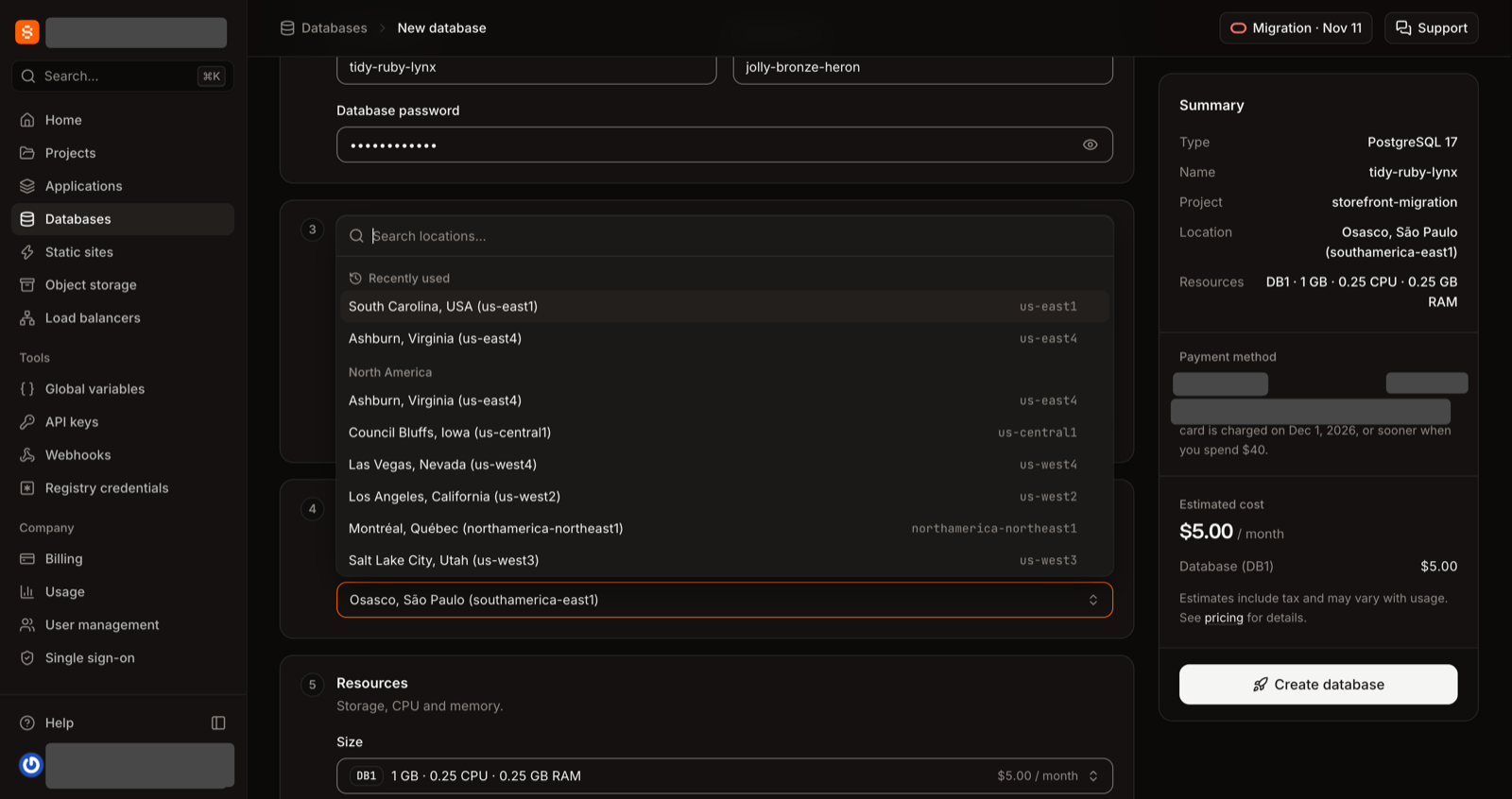
Under Location, choose your Data center and remember it: the form starts on the location nearest your browser, which may not be the one you want, so check it.
Under Resources, choose a Size with room for your data (DB1 is the smallest). Click Create database. When its status changes from Creating to Ready, it accepts connections.
In Oracle Cloud (OCI) locations the form also has a Backups section: External backups is on by default and creates a second bucket named like storefront-db-backups, billed as object storage. That is expected.
The Data center list: pick the location next to your Vercel region (Ashburn, shown here as Ashburn, Virginia).
The Create database form, filled in.
The bucket
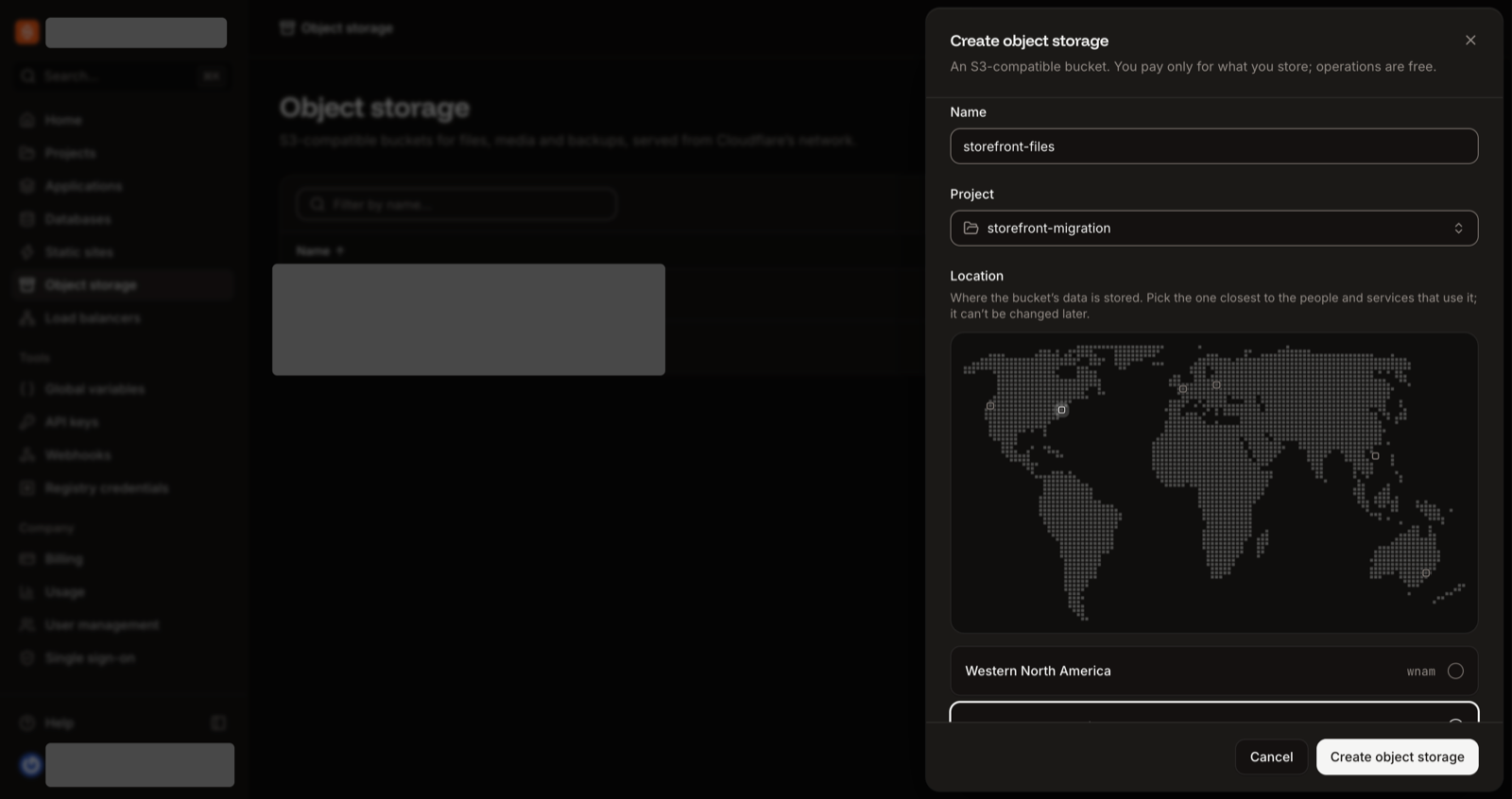
Click Object storage, then Create object storage.
Enter storefront-files as the Name, choose the Location closest to your app (here Eastern North America), and click Create object storage. Sevalla turns the name into a bucket name such as storefront-files-x7k2m.
The Create object storage sheet: a name, a project and a location.
Make the bucket public
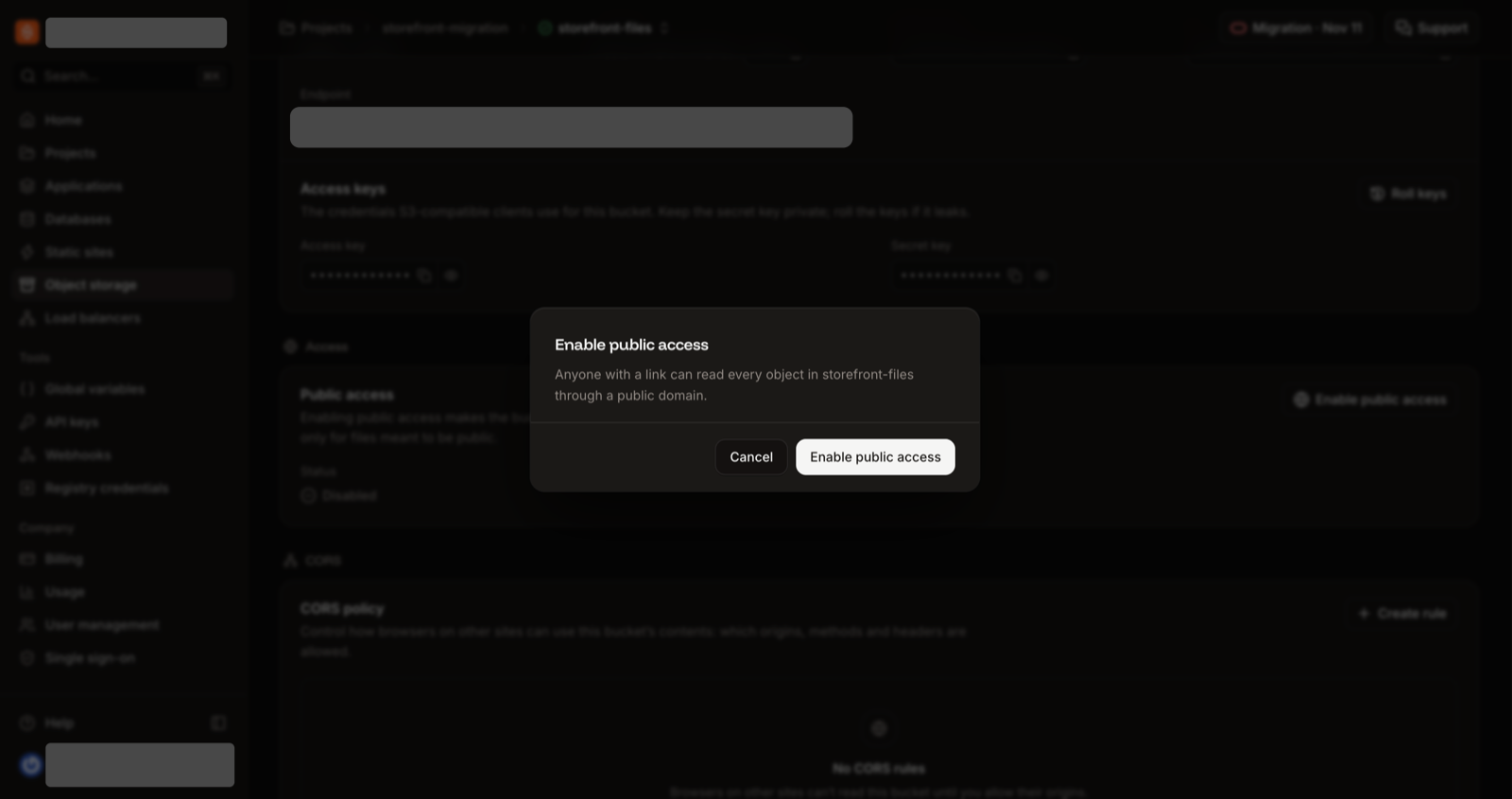
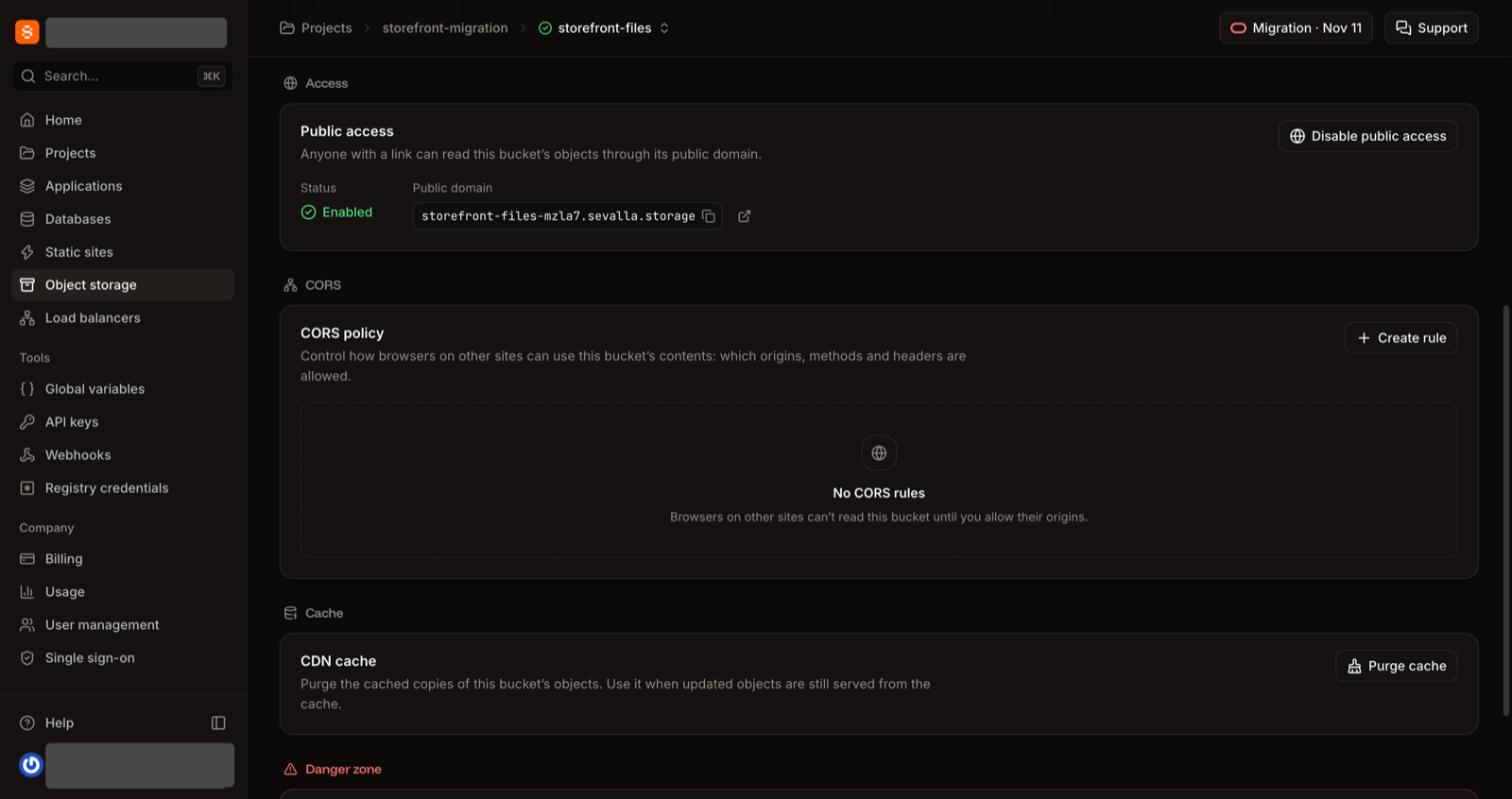
On the bucket's Settings tab, in Public access, click Enable public access, then click Enable public access in the dialog. Public domain now shows the address, such as storefront-files-x7k2m.sevalla.storage. Public access makes every file in the bucket readable by anyone with its address.
The confirmation dialog for public access.
Public access enabled, with the public domain shown.
Leave public access off.
Your Blob store is private, so keep its files in a private bucket and share them with presigned URLs. The original guide's copy script has a private-store option.
The application
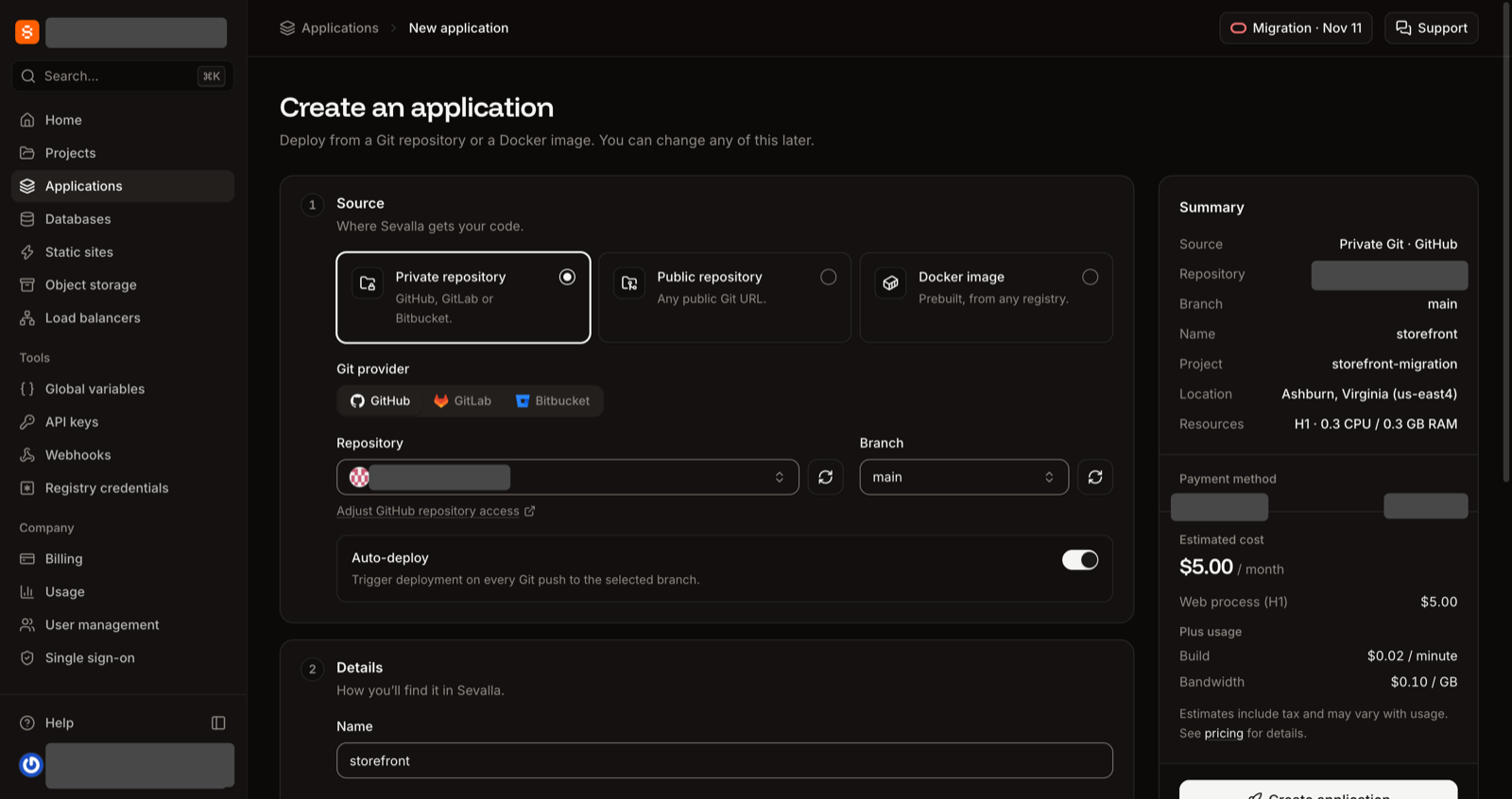
Click Applications, then Create, then Application.
Under Source, click Private repository, choose the Git provider (click Connect to GitHub first if it isn't connected), then the Repository () and the sevallaBranch.
Keep the Name (the web process's internal hostname, used in APP_URL later, comes from it) and, if your company has projects, choose one.
Under Location, choose the same Data center as the database.
Under Resources, choose a size for your app: S1 or larger, because you will move a custom domain (the smallest, H1, can't have one). Click Create application.
Don't deploy it yet.
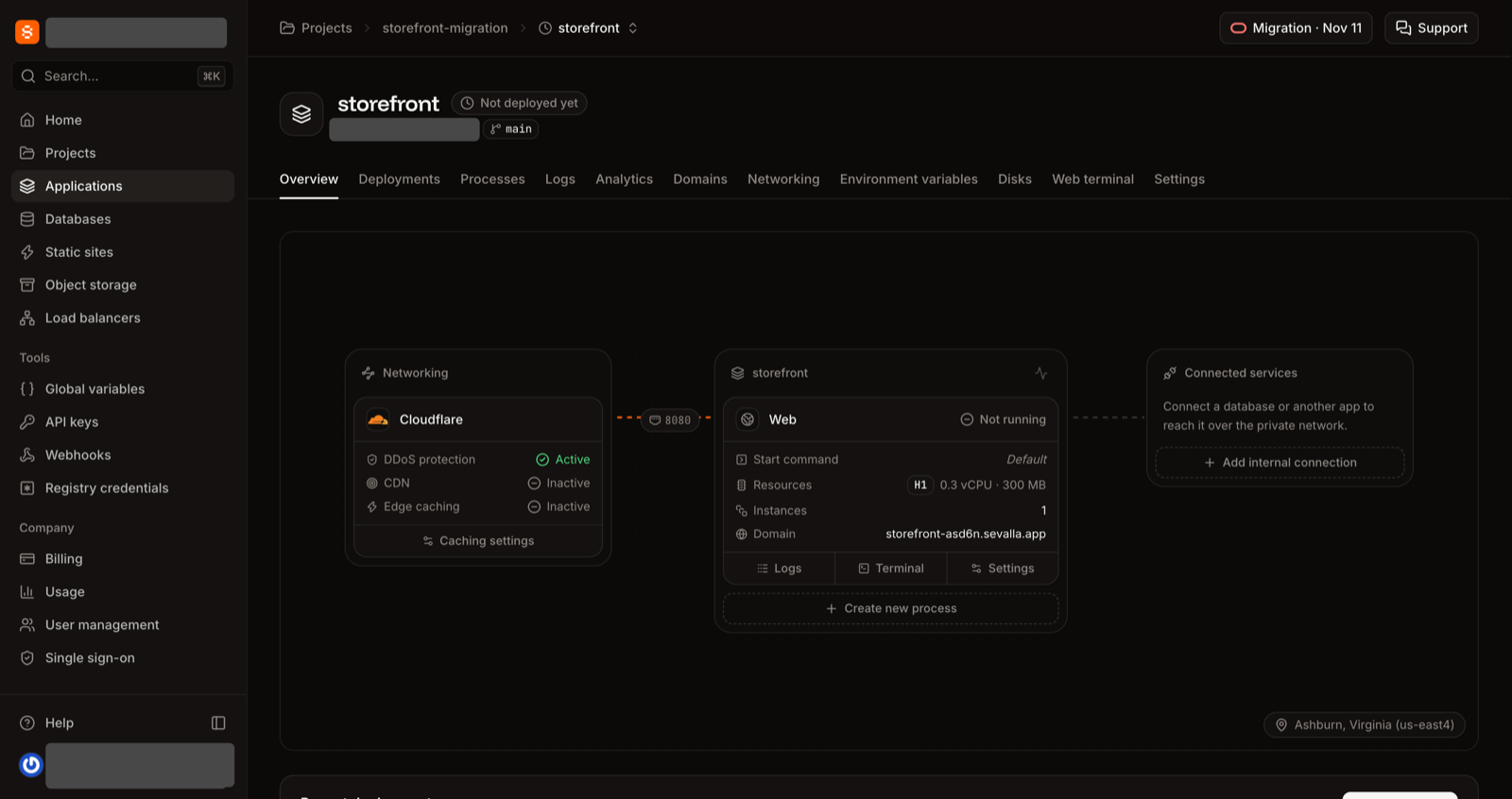
The application opens with the status Not deployed yet. The Auto-deploy switch on the form isn't applied: new applications start with automatic deployments off, and you turn them on in .
The application opens with the status Not deployed yet. The Auto-deploy switch on the form isn't applied: new applications start with automatic deployments off, and you turn them on in .
The Create application form. Choose your own branch (here sevalla) and a size of S1 or larger.
A new application: Not deployed yet.
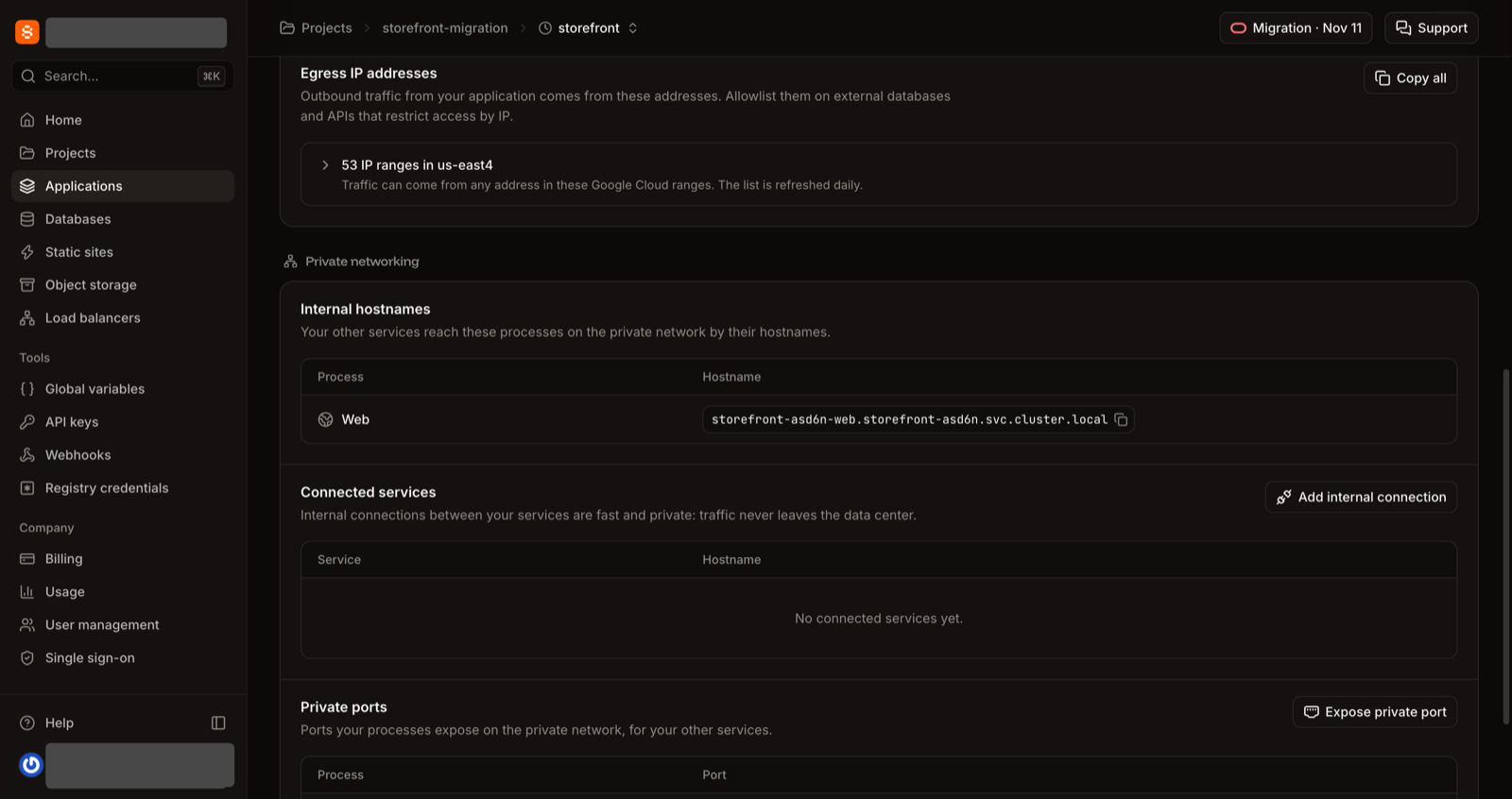
On the application's Networking tab, under Connected services, click Add internal connection.
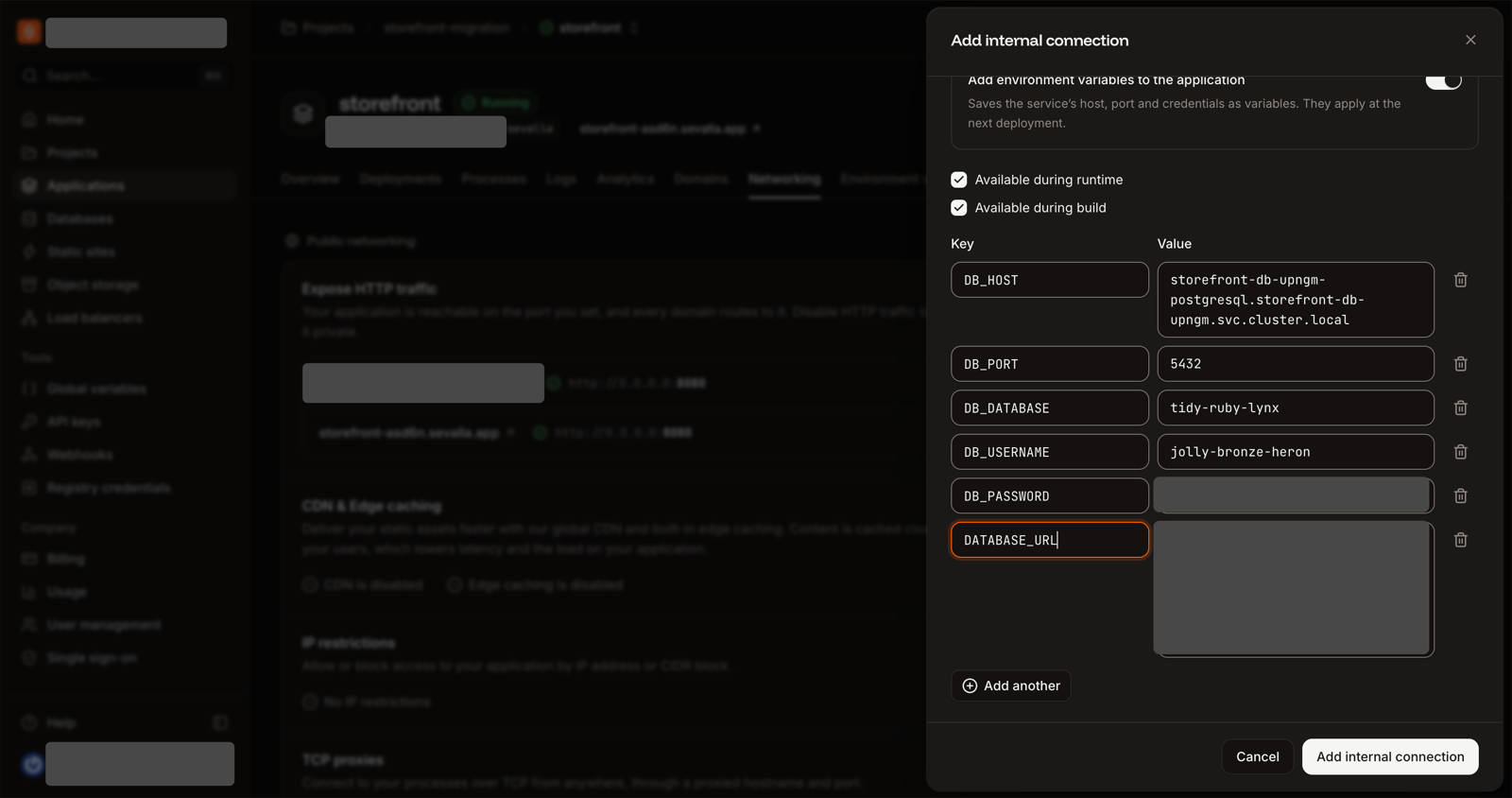
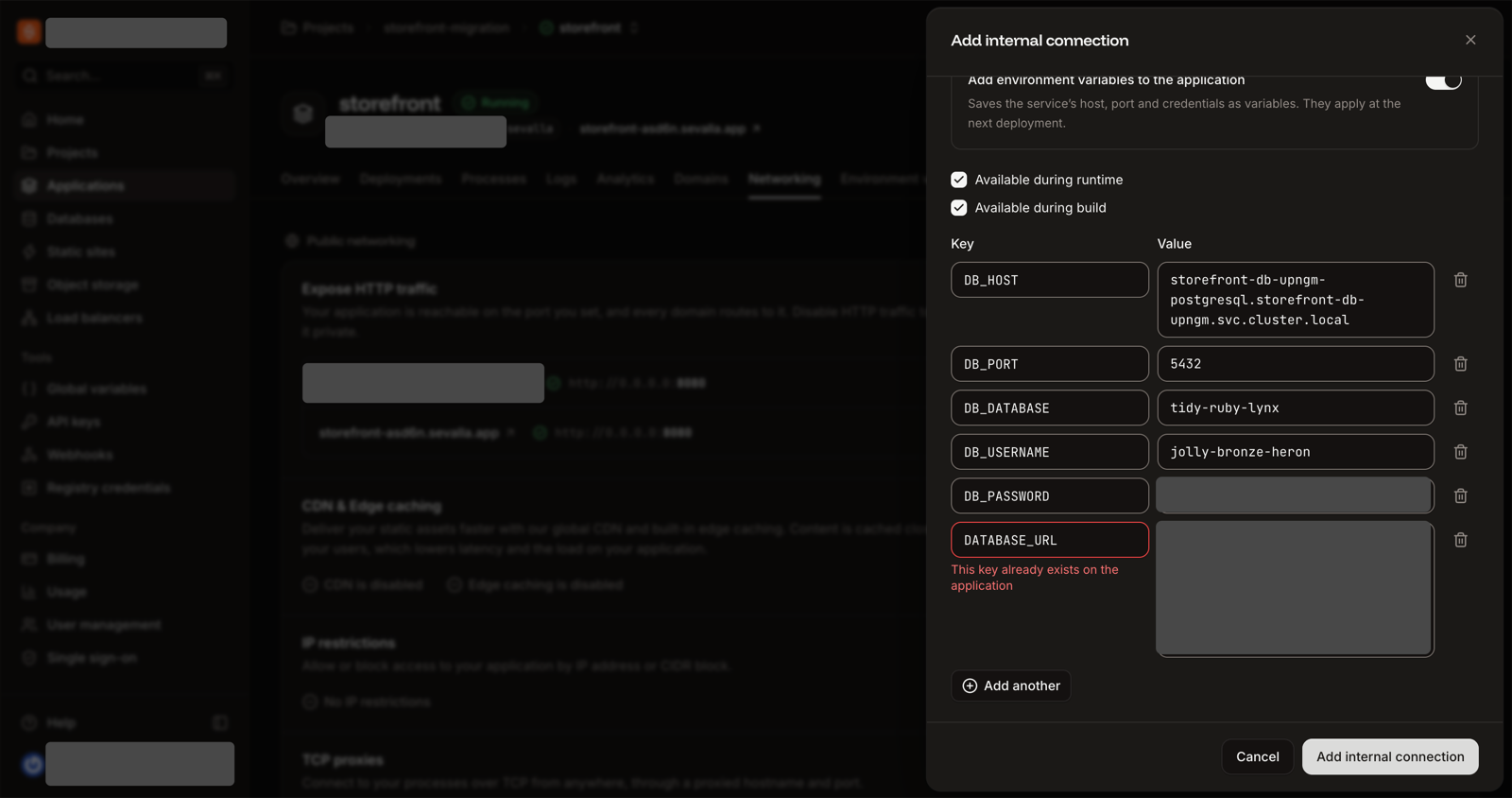
Choose storefront-db as the Service and turn on Add environment variables to the application. Keep Available during runtime and Available during build ticked.
Scroll to the DB_URL row and change its key to DATABASE_URL.
Click Add internal connection.
The Networking tab before connecting: Internal hostnames, Connected services, Private ports.
Add internal connection: the service chosen, the variables toggle on, DB_URL renamed to DATABASE_URL.
The panel shows the values in plain text, passwords included: don't screenshot or share it. The URL starts with postgres:// and has no sslmode, because the connection stays inside the data center. Code that forces TLS for Neon, such as ssl: "require" in the driver options, must drop it. The other DB_* variables it adds are harmless.
"This key already exists on the application"?
A variable called DATABASE_URL is already there, so the panel won't save. Delete the old one on the Environment variables tab, reload the panel, and try again. (The next step never adds DATABASE_URL by hand, which avoids this.)
The error you get if DATABASE_URL already exists.
1. Write the list
In a text editor, write one KEY=value per line: your own variables from , the new secrets, and the values in the table. Leave out the Vercel and integration variables (VERCEL*, TURBO_*, NX_DAEMON, BLOB_*, DATABASE_URL, PG*, POSTGRES_*, NEON_*, VITE_NEON_*) and PORT, which Sevalla sets. Replace any value that contains your Vercel address with your sevalla.app address. Code that reads VERCEL_URL or VERCEL_ENV needs a variable of your own instead.
The bucket's Endpoint, Bucket name, Access key and Secret key, on its Settings tab under Details and Access keys (click the eye icon to show a key). Keep the keys private
S3_PUBLIC_URL
https:// plus the bucket's Public domain, for example https://storefront-files-x7k2m.sevalla.storage
CRON_SECRET
The value from Vercel if you have it, otherwise a new long random string
APP_URL
http:// plus the web process's internal hostname (application Networking tab, Internal hostnames) plus :8080, for example http://storefront-x7k2m-web.storefront-x7k2m.svc.cluster.local:8080
Your own variables
As on Vercel (for example STORE_NAME), and new random values for any Secret you couldn't read, such as ADMIN_TOKEN
DATABASE_URL
Already added in . Don't add it again; it must be available during the build and at runtime
2. Add them
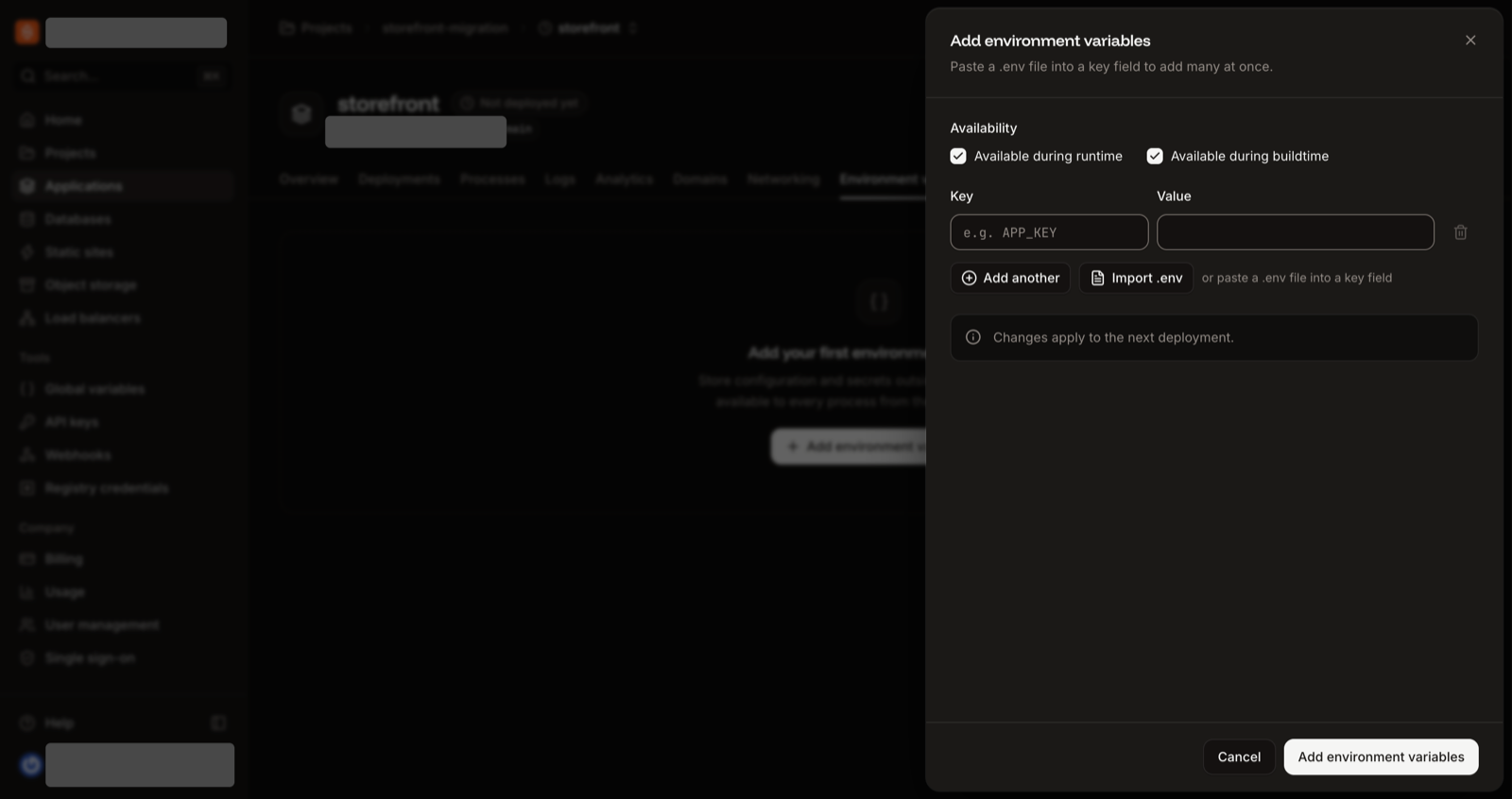
Click the application's Environment variables tab, then Add environment variables.
Paste your whole list into a key field (or click Import .env and choose the file).
Keep Available during runtime and Available during buildtime ticked, and click Add environment variables. The changes apply at the next deployment.
The Add environment variables panel, with Import .env and the availability boxes.
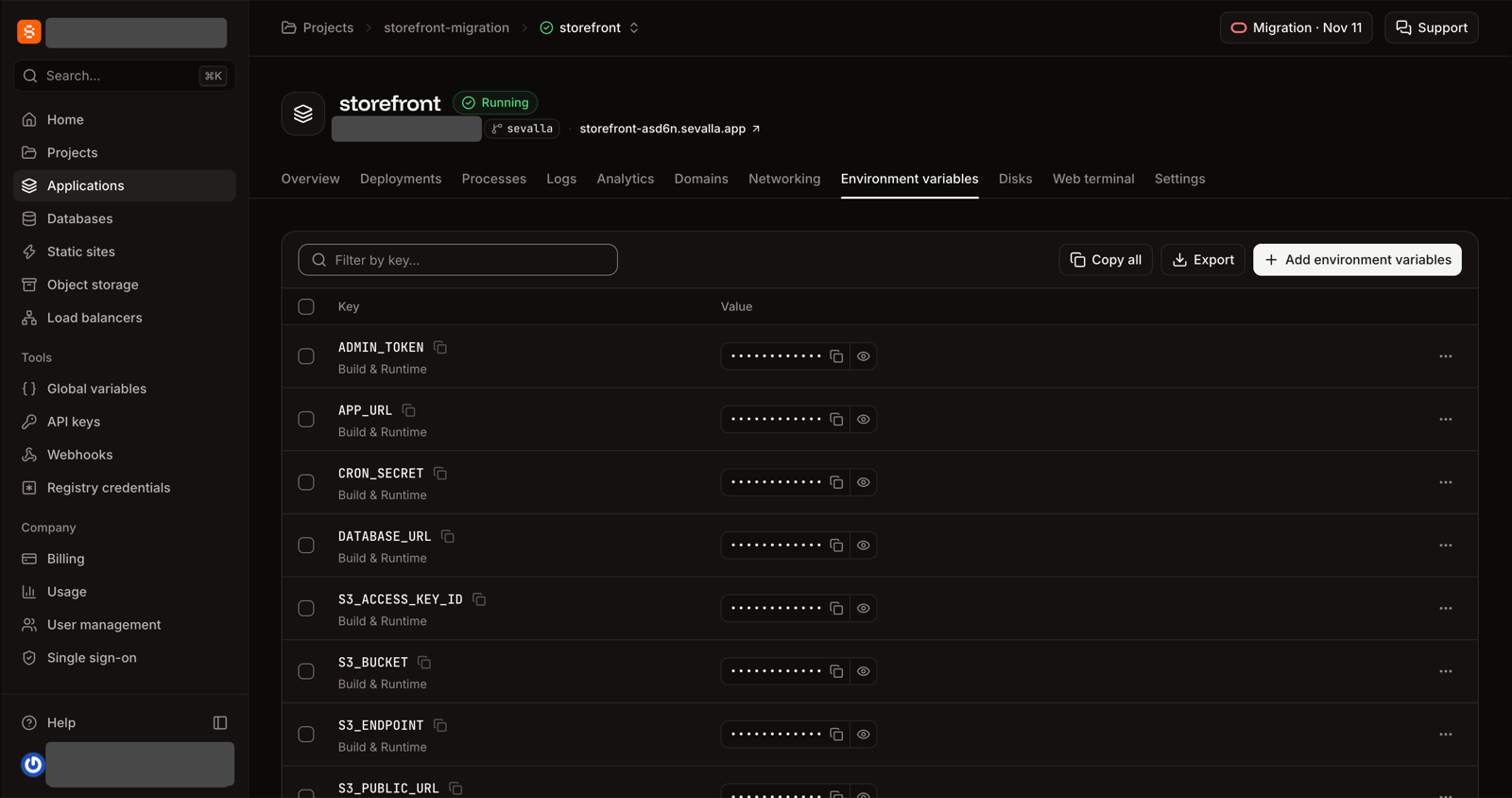
The Environment variables tab afterwards: values are hidden behind an eye icon, and Copy all and Export are at the top.
About quotes.
When you paste or import a .env list, Sevalla removes the quotes around values (and export and trailing # comments), so NAME="Storefront" becomes Storefront; we tested this. If you instead type a value into the form's Value box, don't add quotes: they would be saved as part of the value.
Variables of Vercel's Preview environment belong to preview apps (see the original guide). Your Development values stay in your local .env.local: Sevalla has no development environment.
For each cron job from :
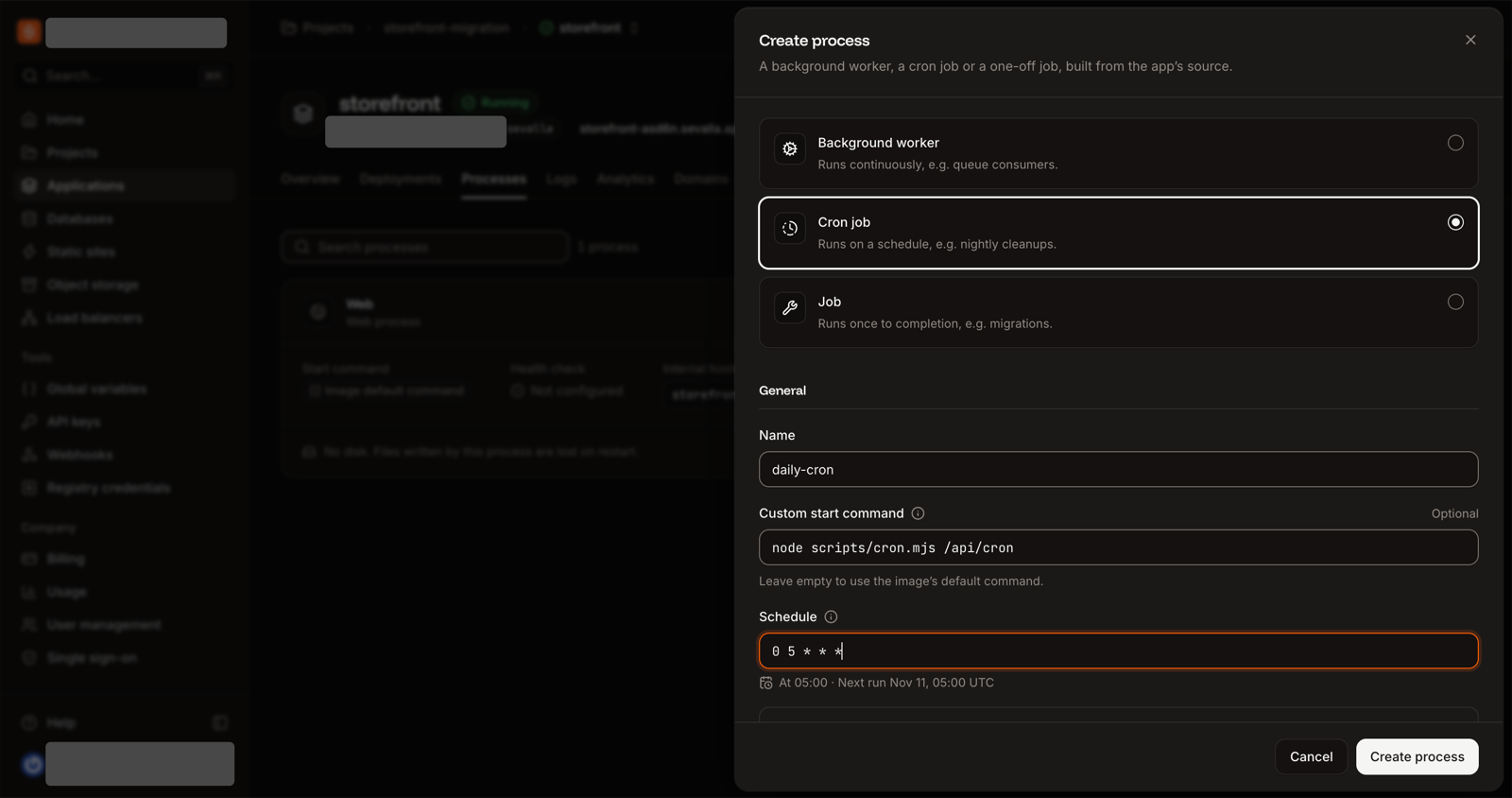
Click Create process on the application's Processes tab, and choose Cron job.
Enter a Name.
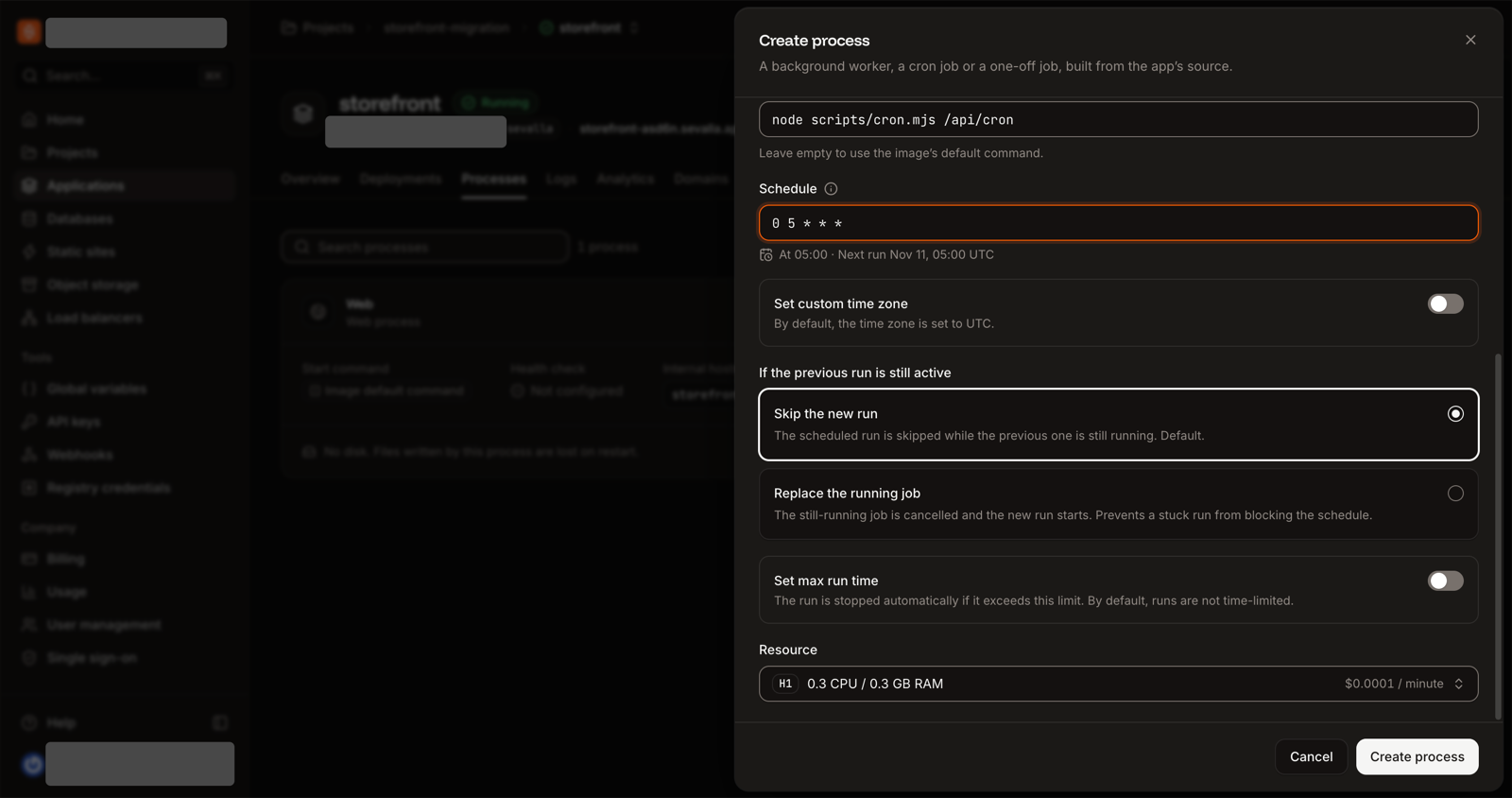
Enter node scripts/cron.mjs followed by the job's path as the Custom start command.
Copy the schedule into Schedule. Sevalla confirms it in words ("At 05:00 · Next run …"). The time zone is UTC unless you set one, the same as Vercel.
Keep the defaults: Skip the new run if the previous one is still active, and the smallest Resource, H1. Click Create process.
Create process: Cron job, the name, the start command and the schedule.
The rest of the form: time zone, what to do if a run is still active, and the size.
The job takes effect when you deploy.
The new job shows Not run yet, and the application shows undeployed changes. You deploy in .
Vercel's Hobby plan runs a cron job once a day at most, at any minute within the hour. A Sevalla cron job runs at the minute you set, as often as every minute.
This changes nothing for your visitors.
Vercel keeps serving the domain. (Your DNS is on Cloudflare: see the Cloudflare note below. That one is different.)
1. Add it
The application's web process must be on a size larger than H1, and the company needs a payment method. If the process is still on H1, click Modify process on the Custom domains card (or open the Processes tab, click ⋯ on the web process, then Update process), choose a larger size, and save. Don't deploy yet.
On the Domains tab, under Custom domains, click Add custom domain.
Enter the domain in Domain name, for example , and click Add custom domain. The domain appears with the status Verification, and its DNS records sheet opens.
Your assistant already added (it is in the prompt). Open the application's Domains tab and its DNS records sheet to see the records; the status is Verification. Sevalla's custom domains page shows these screens.
2. Add the verification records
At your DNS provider, add the two TXT records the sheet shows: _cf-custom-hostname (proves ownership) and _acme-challenge (lets the certificate be issued; keep it for renewals). Copy them with the copy buttons. Some providers add your domain to the name for you; use the short name there. Leave the A or CNAME record that points at Vercel where it is: the verification records have different names, and Vercel keeps serving the domain meanwhile, as Sevalla's technical guide says. Delete only older verification records left from an earlier attempt. You replace the pointing record in .
Your DNS is at Vercel
Add the records in the domain's DNS records in your Vercel account, or hand these to a developer. A record you add for the domain overrides the one Vercel creates for the project, which is how you point it later:
vercel dns add example.com _cf-custom-hostname.shop TXT <value shown>
vercel dns add example.com _acme-challenge.shop TXT <value shown>
vercel dns add example.com @ CAA '0 issue "pki.goog"'
Vercel's DNS adds a CAA record for Let's Encrypt, so a domain that uses Vercel's nameservers needs the one above: name @, type CAA, value 0 issue "pki.goog" (Sevalla's certificates come from Google Trust Services).
If your zone already has CAA records
Add one that lets Sevalla's certificates be issued: name @, type CAA, value 0 issue "pki.goog" (Sevalla's certificates come from Google Trust Services). If your zone has no CAA records, you don't need one.
Your nameservers are Cloudflare's: this part is different
Sevalla detects it and asks for a CNAME in place of the ownership TXT. That CNAME is also the record that points visitors at Sevalla, so adding it moves your traffic. Add the _acme-challengeTXT record now, but add the CNAME only inside the window, right before , as a DNS only (grey cloud) record until the domain is Active. Set the zone's SSL/TLS mode to Full or Full (strict) before you turn the proxy on. If the zone restricts certificate authorities, add the CAA record 0 issue "pki.goog". See Domains on Cloudflare DNS.
3. Wait
Click Refresh records. Verification usually completes within minutes and can take hours with some providers. When it completes, both records show Verified and the status changes to Pointing, which means the certificate is ready. Visitors keep reaching Vercel the whole time. Sevalla keeps checking for 7 days: a domain still in Verification after that becomes Timed out, and you have to delete it and add it again, so add the records soon after adding the domain.
PauseFreeze Vercel so nothing changes underneath you.
CopyThe database and the files, then fix the file addresses.
VerifyDeploy and check everything on the sevalla.app address.
SwitchPoint your domain at Sevalla. Not before.
If something goes wrong, you haven't pointed your domain yet, so you can resume Vercel. While Vercel is paused, visitors see an error page, so pick a quiet moment. Want to practise first? Run the copy steps once without pausing Vercel, test on your sevalla.app address, then run them again for real.
Your route moves no database or files, so there is no data to freeze and no pause: deploy, check, and point your domain.
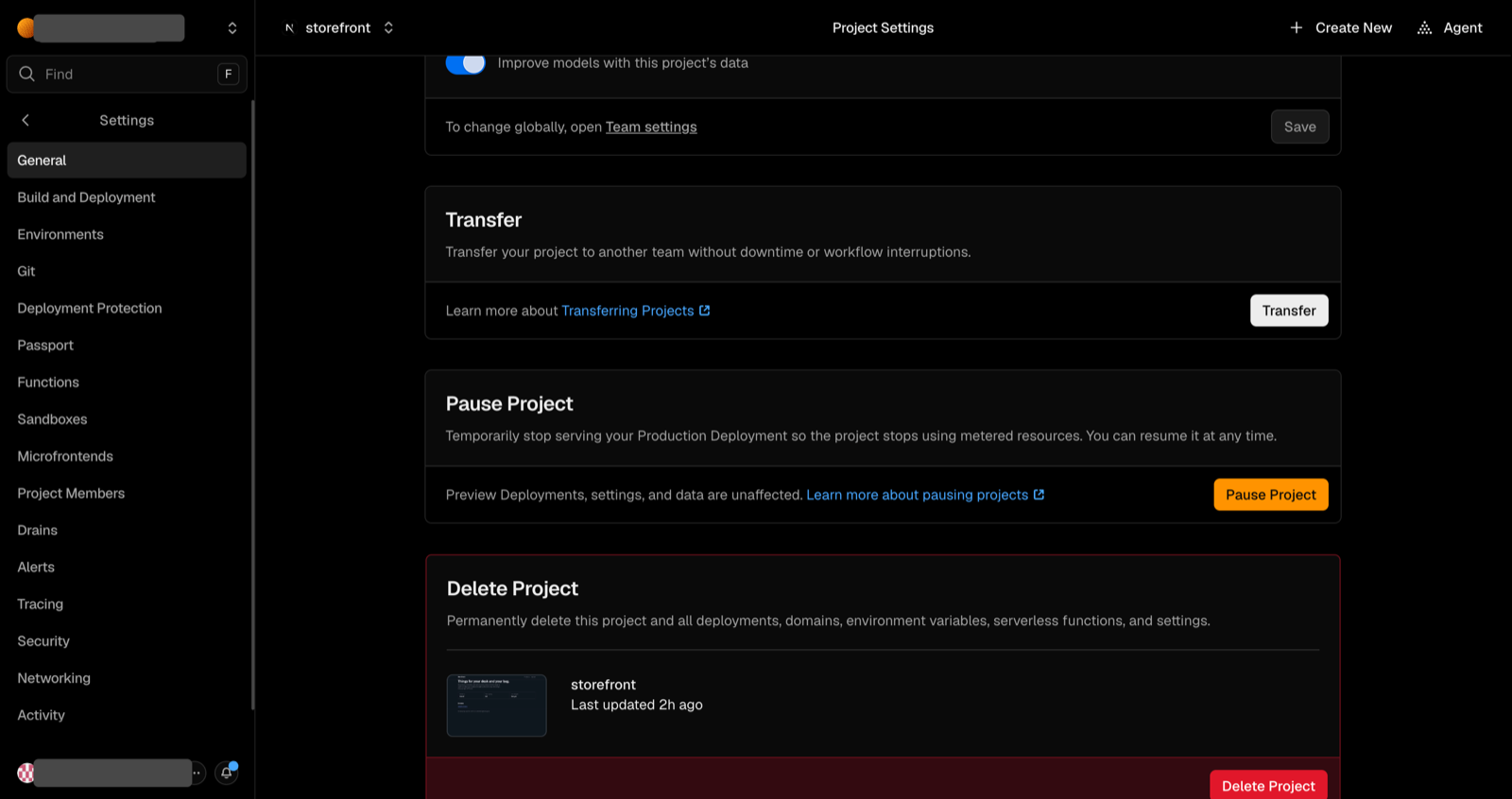
In Vercel, open your project, click Settings, then General.
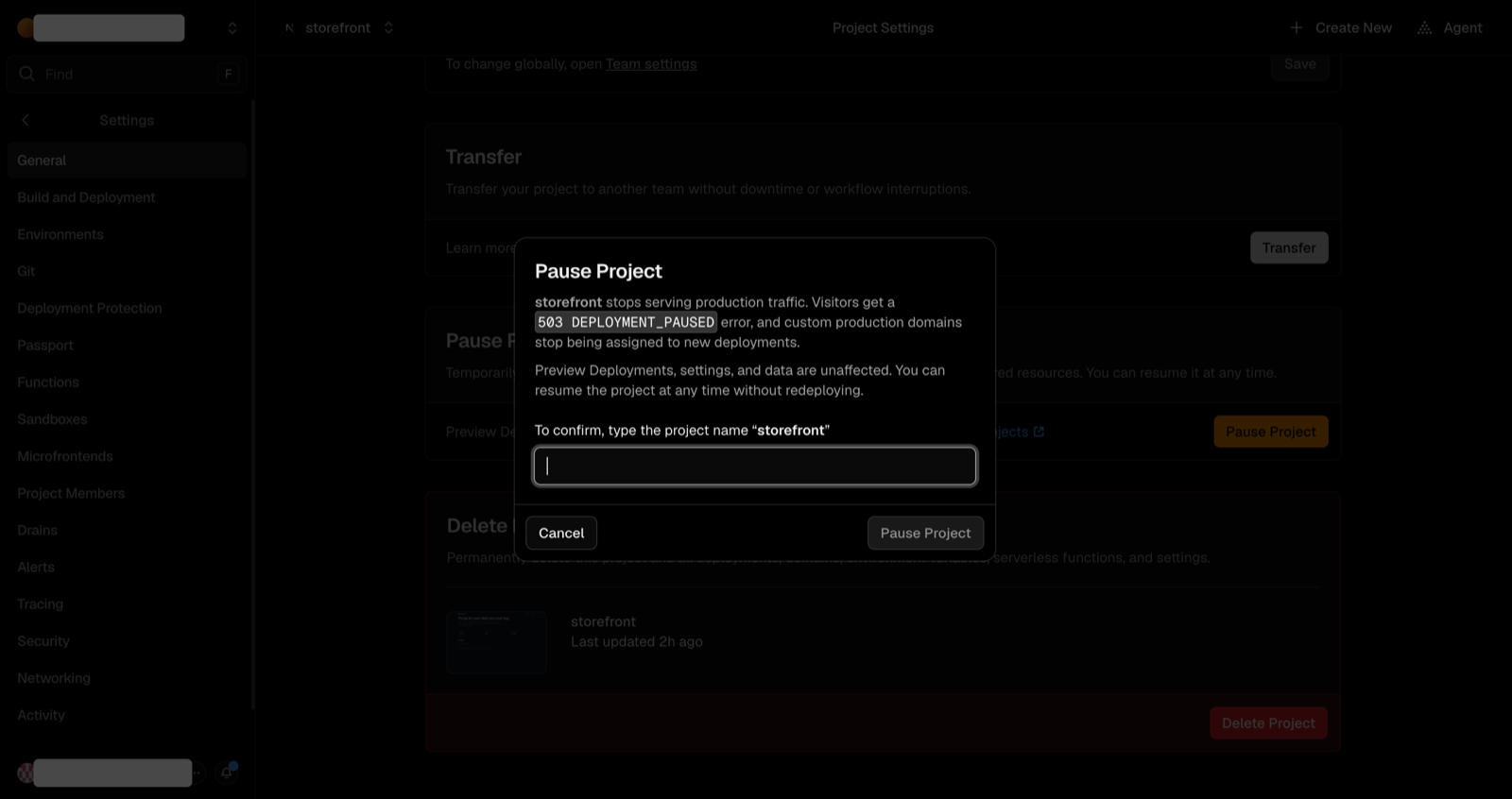
In Pause Project, click Pause Project, type the project name to confirm, and click Pause Project.
Visitors now get a 503 DEPLOYMENT_PAUSED error, and your cron jobs stop writing. Previews, settings and data are unaffected, and you can resume at any time without redeploying.
Settings, General: the Pause Project card.
The confirmation: you type the project name.
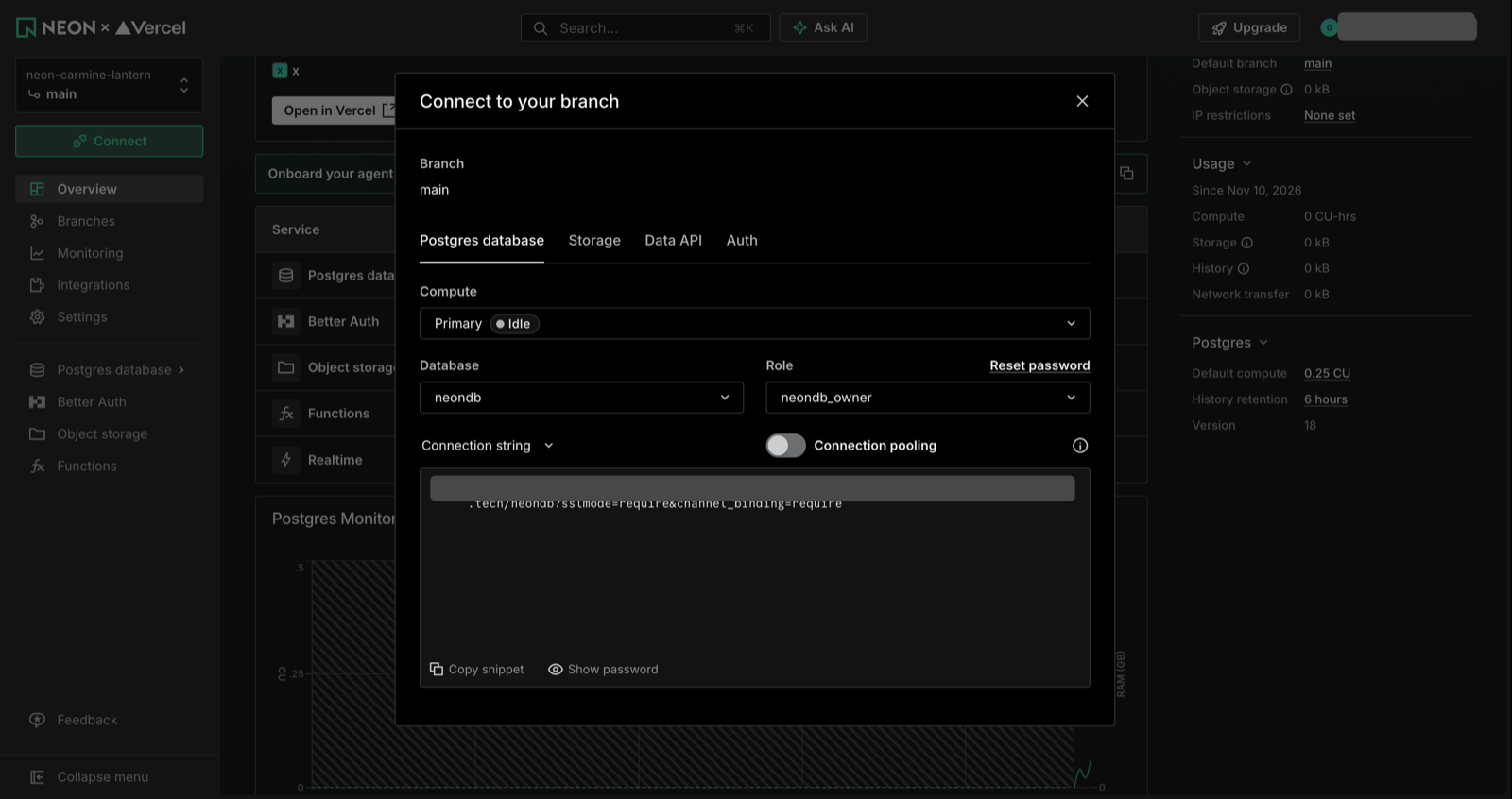
You need the unpooled connection string, the one Neon recommends for dumps. In Vercel, click Storage and open your Neon database. Find the .env.local snippet on its page, click Show secret, and copy DATABASE_URL_UNPOOLED. (The Neon console's Connect dialog shows the same string when Connection pooling is switched off; the pooled one has -pooler in its host.) Treat it like a password.
Neon's Connect dialog with Connection pooling switched off: copy the connection string it shows (the pooled one has -pooler in its host).
The command
Use PostgreSQL command-line tools at the Neon version or newer (for a Neon database on 18, that means 18). Sevalla's Import and export PostgreSQL page says how to get them.
It prints nothing when it works and leaves a vercel.dump file next to you. neon_auth is the schema Neon Auth creates; leaving it out is harmless if you don't have one. Keep the file until you are sure the move worked.
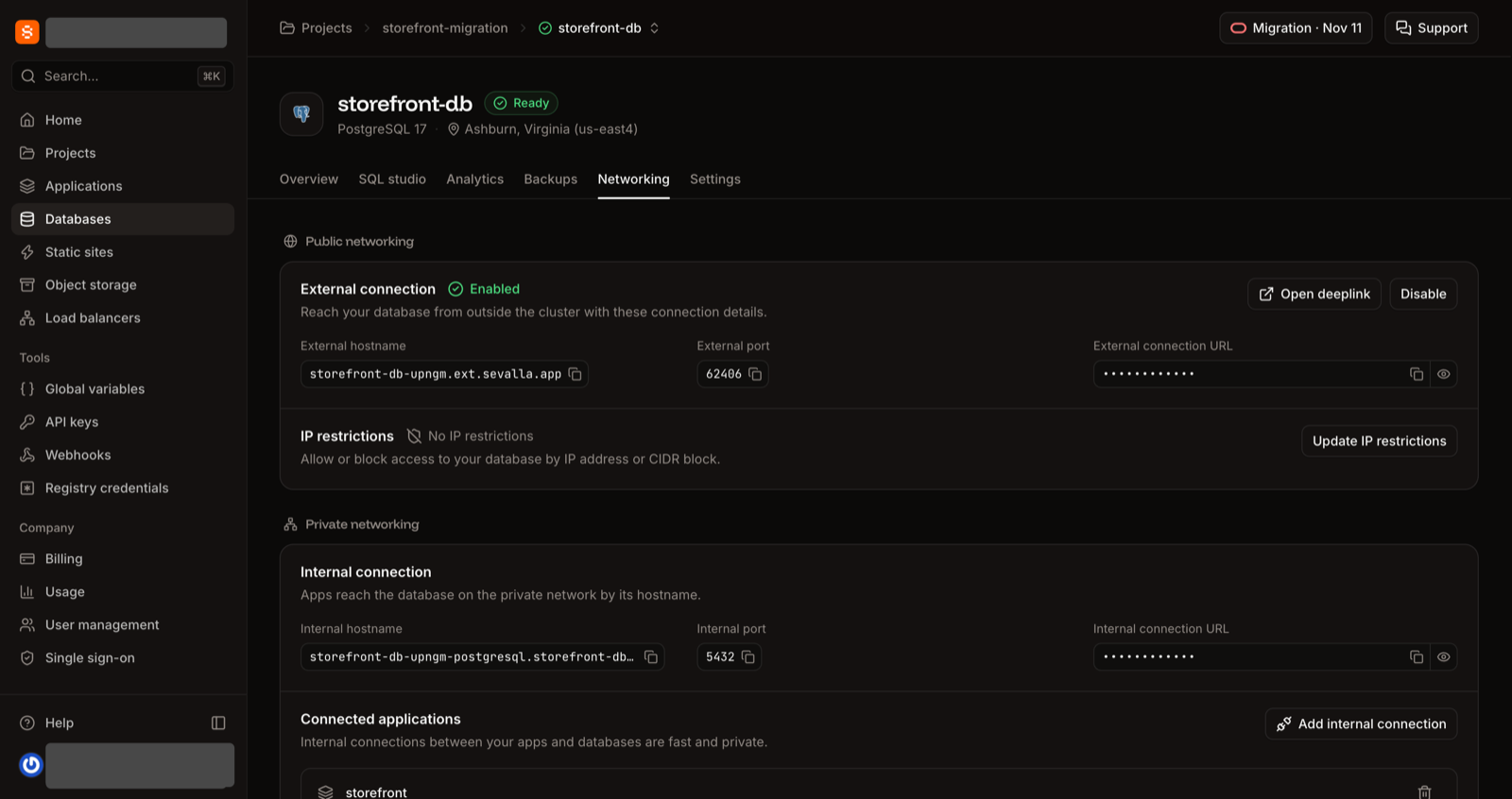
In Sevalla, click Databases, then storefront-db, then the Networking tab.
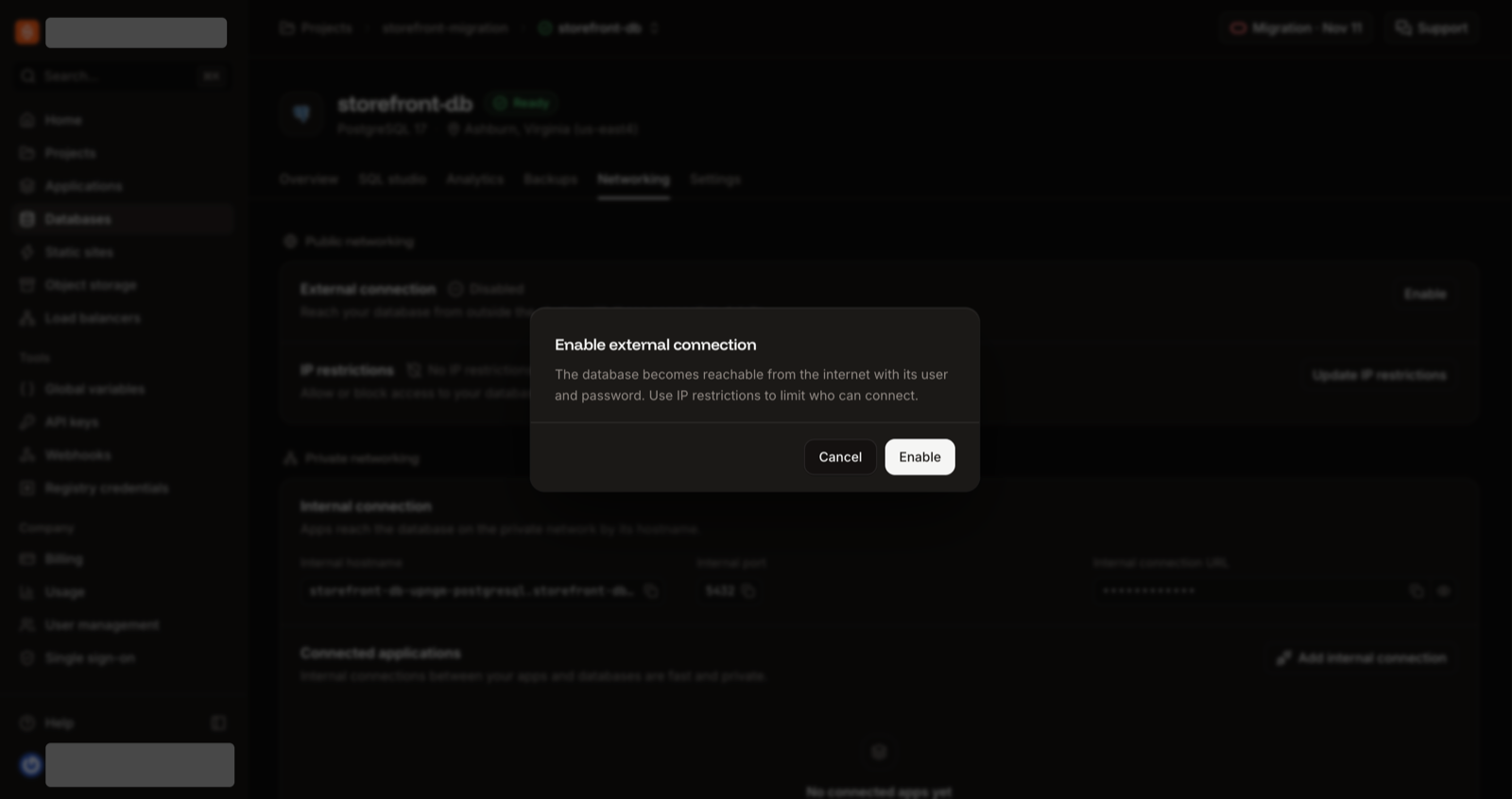
Under External connection, click Enable, then Enable in the dialog.
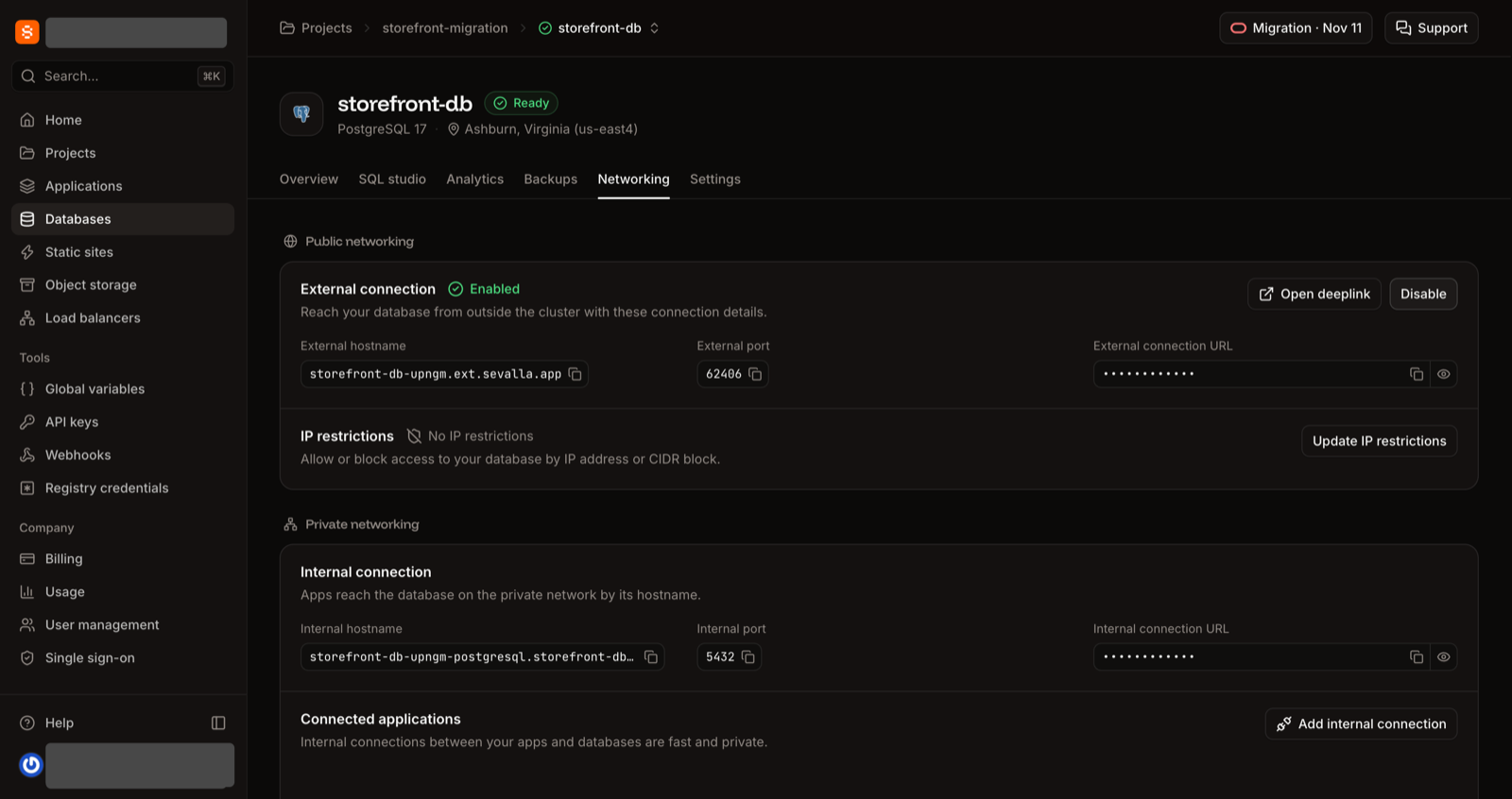
When it shows Enabled, copy the External hostname and External port. The user, database name and password are in the database's Overview tab, under Connection, External.
The confirmation dialog for the external connection.
Enabled: the hostname, a port Sevalla assigns, and the masked connection URL.
Your assistant can do this too (toggleDatabaseExternalConnectionV3), but the dump and restore are still yours.
Replace the host, port, user and database with yours. It asks for the password (or set PGPASSWORD first, as Sevalla's import and export page shows). It prints nothing when every object restores. Don't add sslmode=require: in our test the external connection didn't accept it.
Practising first, or restoring a second time?
Add --clean --if-exists to the command so it replaces the tables from the earlier run. It replaces the data too, so anything you added to the Sevalla database by hand is gone, and the file addresses go back to Vercel's (run again).
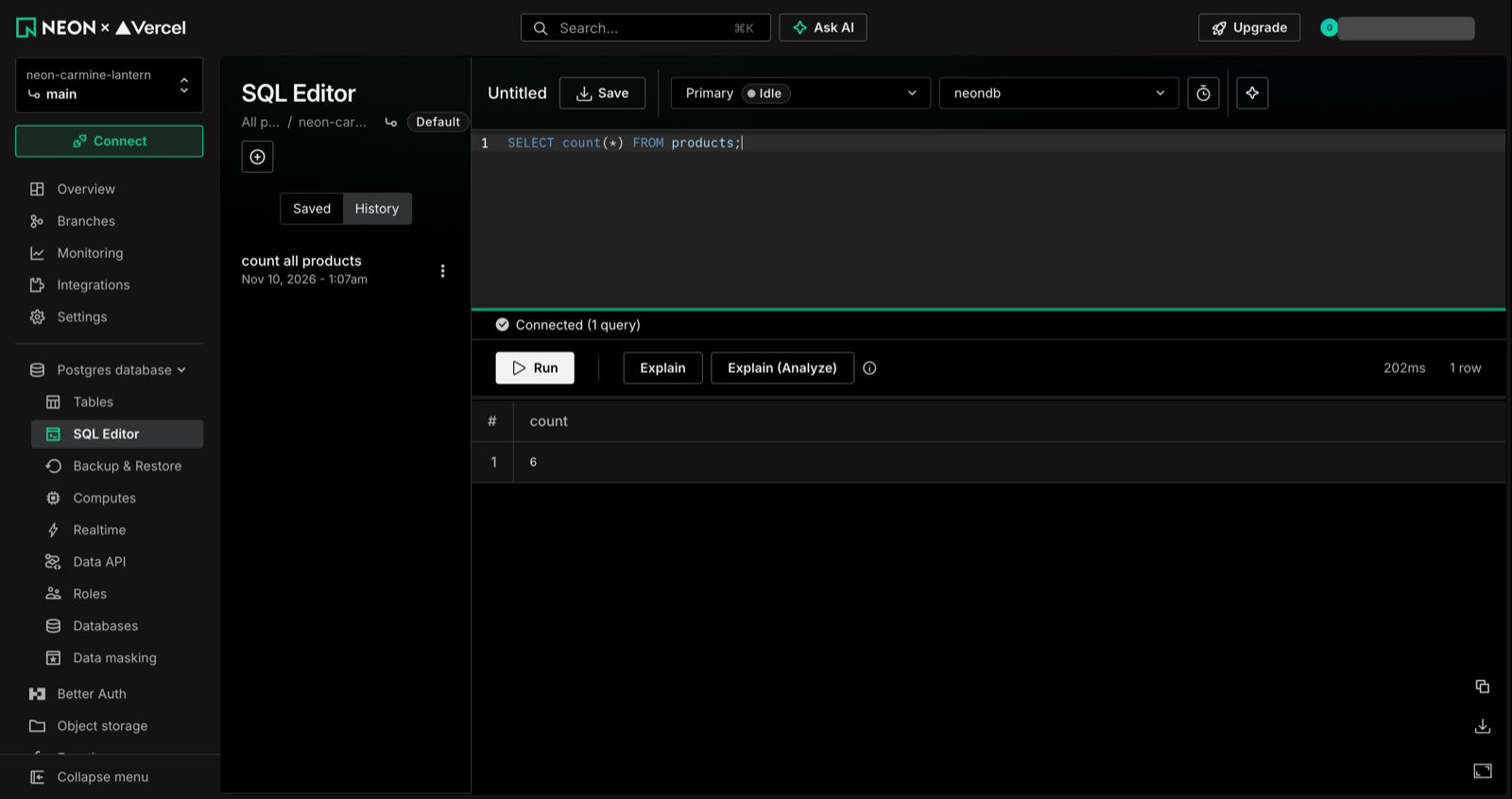
In Neon, open SQL Editor (clear the sample SQL first).
In Sevalla, open the database's SQL studio tab, then SQL console.
Run the same query in both. Name your own tables:
SELECT 'your_table' AS "table", count(*) AS "rows" FROM your_table
UNION ALL SELECT 'other_table', count(*) FROM other_table;
-- add one line per table you have
Neon's SQL Editor running a count query on the source.
Row counts catch a missing table or a restore that stopped halfway. They don't prove every value is identical; if you want that check, the original guide's step 5 compares a hash of each table. The studio needs a wide browser window: in a narrow one the editor doesn't open.
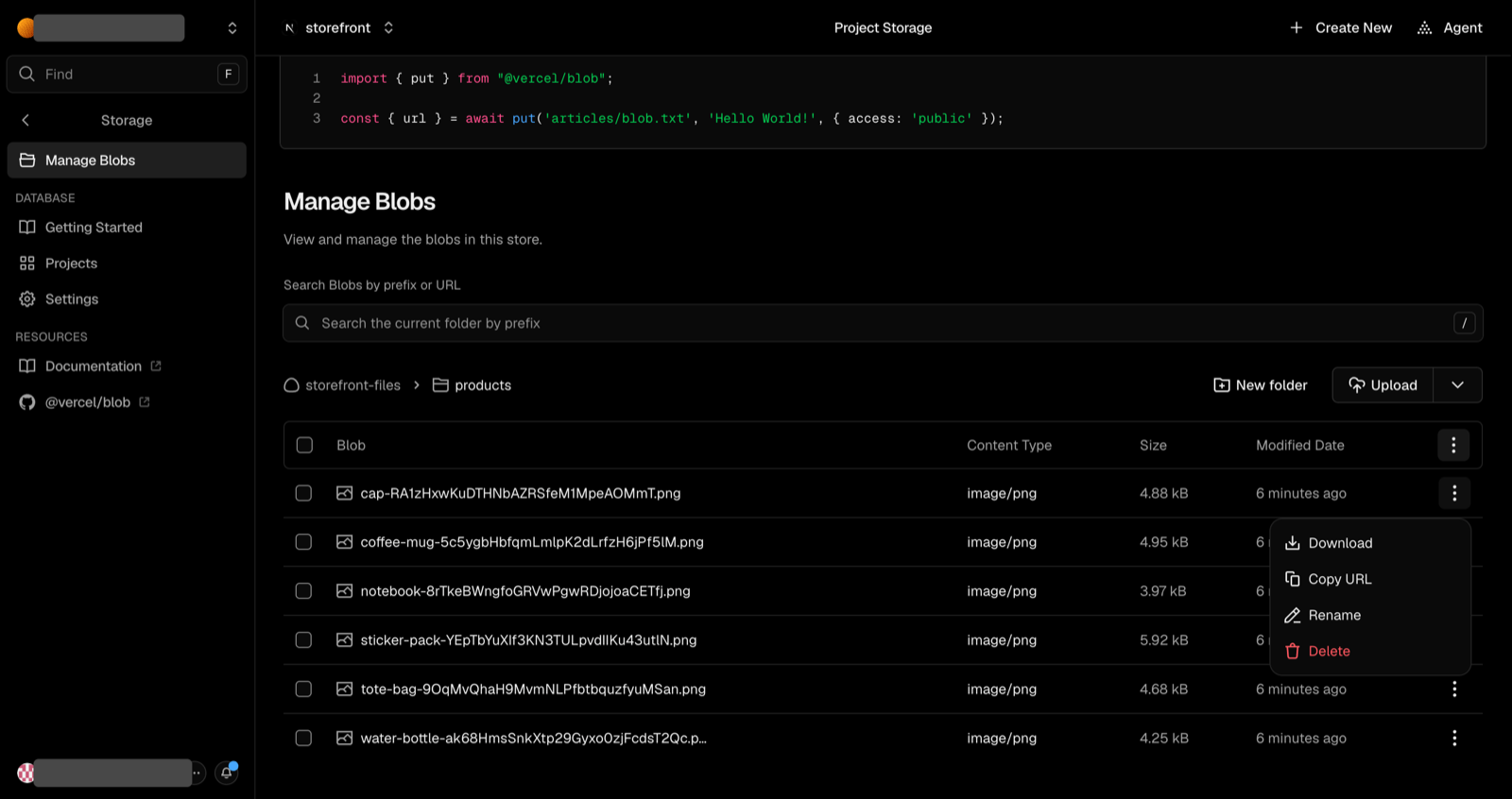
In Vercel, open the Blob store and click Manage Blobs.
For each file click its ⋮ menu, then Download (Vercel offers no download for several files or a folder).
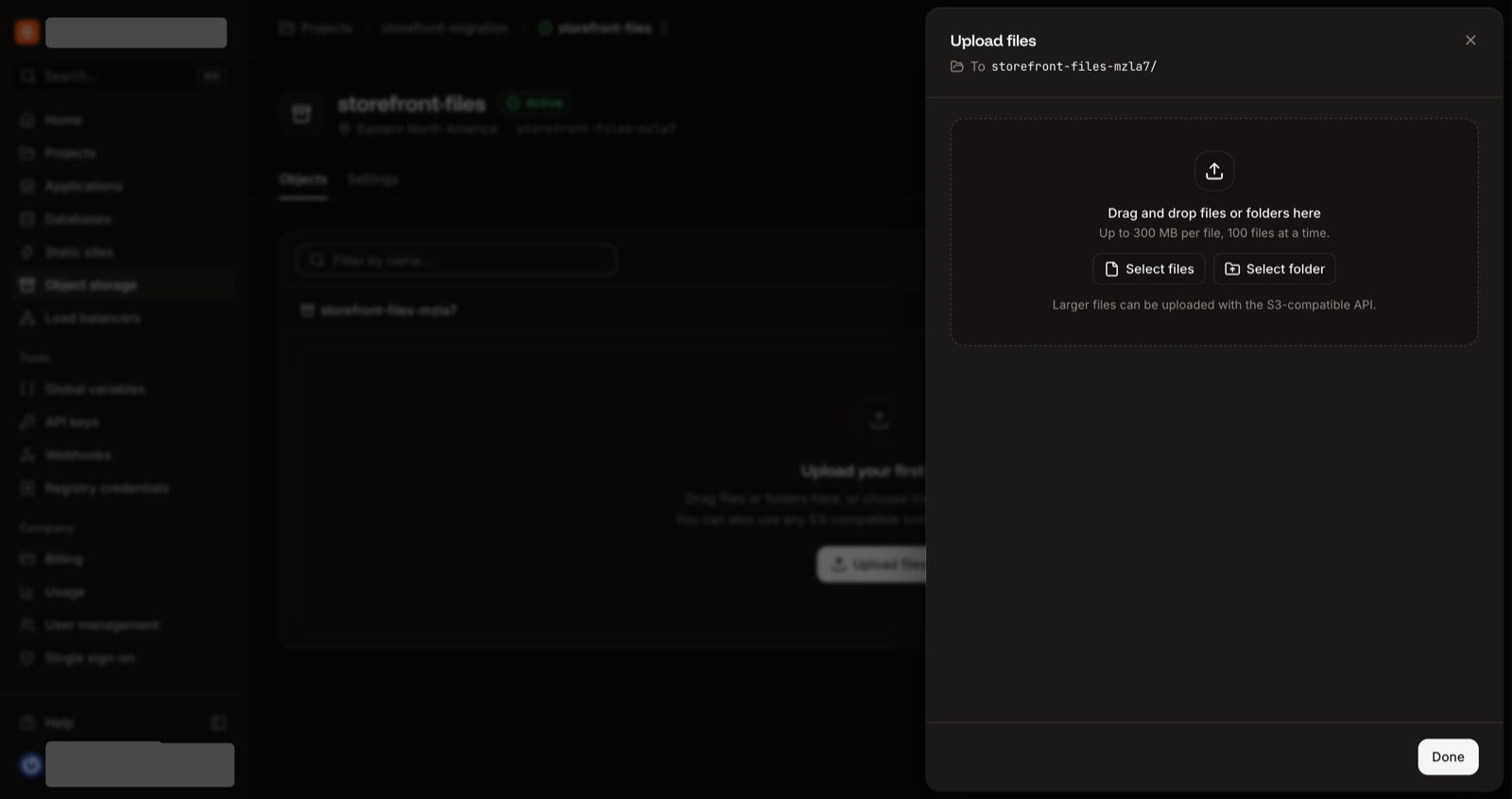
In Sevalla open the bucket's Objects tab, click Upload, and add the files: you can select several files or a whole folder, or drag them in.
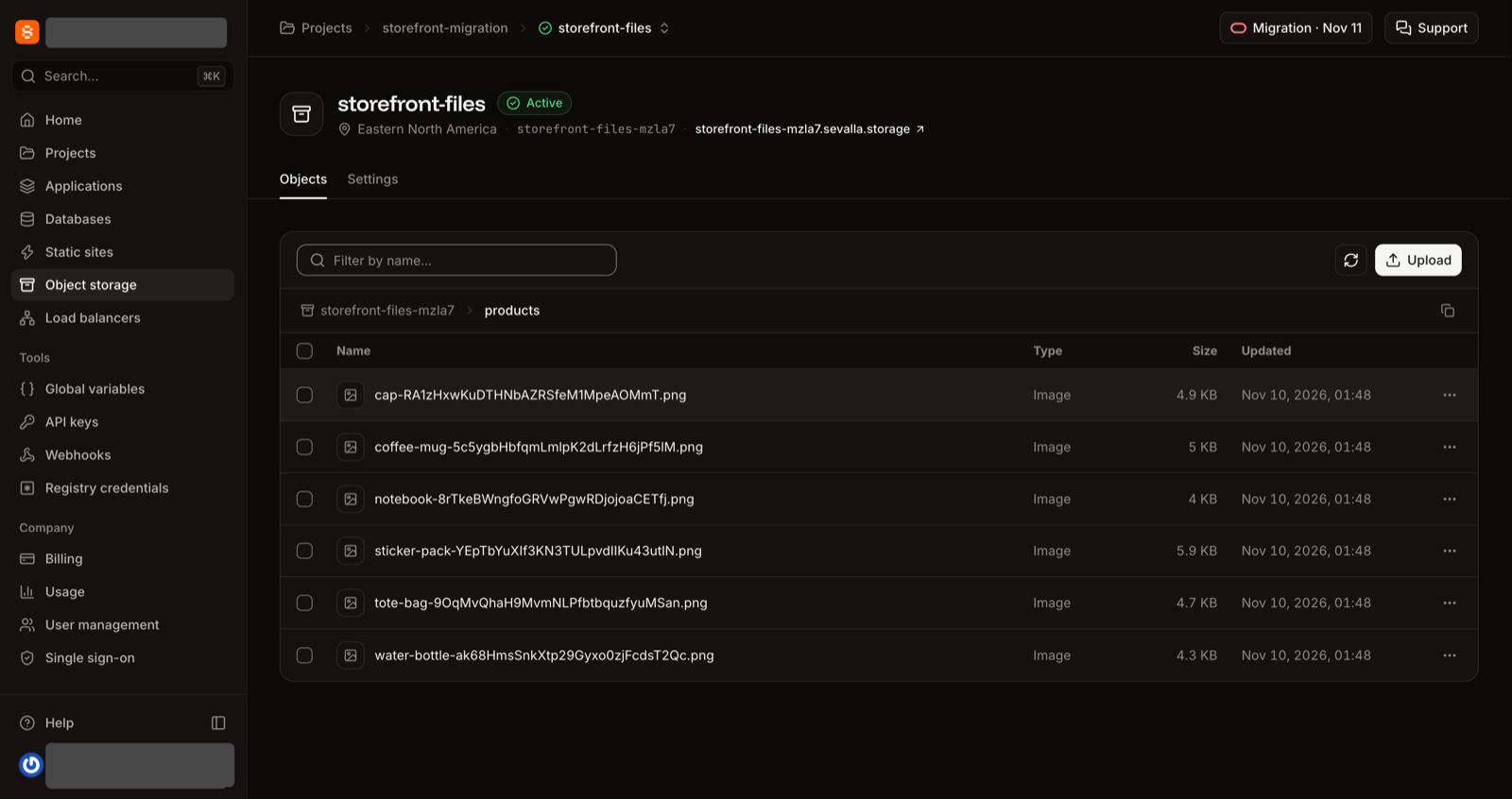
Check that the Objects tab lists them all.
Keep the same folders and file names
For example products/coffee-mug-….png. The next step only swaps the domain part of each address.
Manage Blobs: a file's menu has Download.
The bucket's upload panel: files or a folder, or drag and drop.
The bucket's Objects tab with the files in place.
That is fine for a handful of files. For a store with many files, ask your developer to use the original guide's copy script, which copies every file to the same path in one run (it has a private-store option).
Your database stores the full address Vercel gave each file, on your store's public.blob.vercel-storage.com domain. To find that domain, copy any file's address from Manage Blobs: it is the part before the file's path. Replace it with the bucket's public domain in every column that holds one. The statements below use placeholder table and column names: swap in your own, one statement per column.
In Sevalla, open the database's SQL studio and click SQL console.
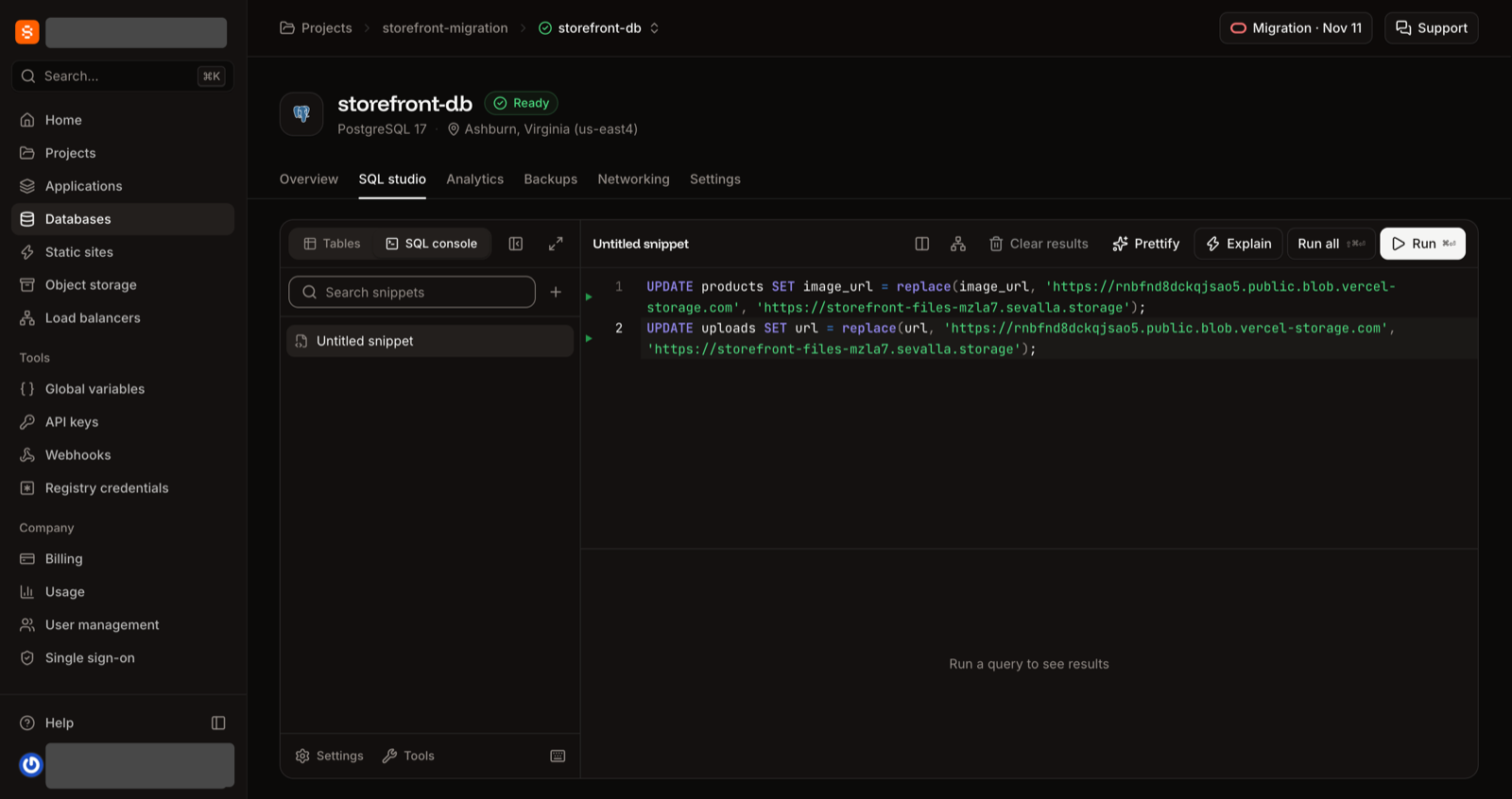
Replace the sample query with your statements, and click Run all:
UPDATE your_table SET your_column = replace(your_column, 'https://k3j4h5m6n7p8q9r0.public.blob.vercel-storage.com', 'https://storefront-files-x7k2m.sevalla.storage');
UPDATE other_table SET other_column = replace(other_column, 'https://k3j4h5m6n7p8q9r0.public.blob.vercel-storage.com', 'https://storefront-files-x7k2m.sevalla.storage');
The SQL console with the two statements.
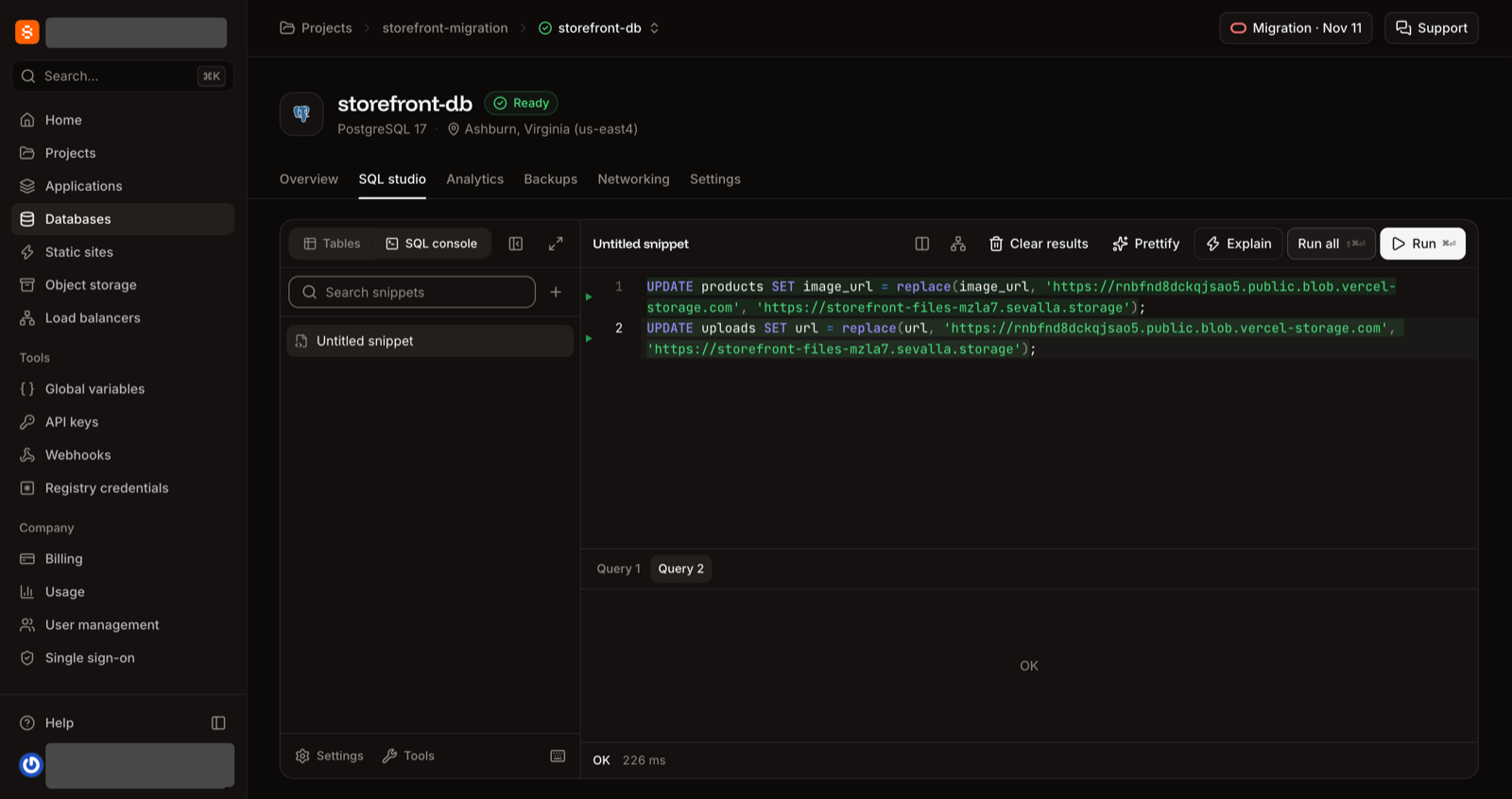
After Run all: OK for each statement.
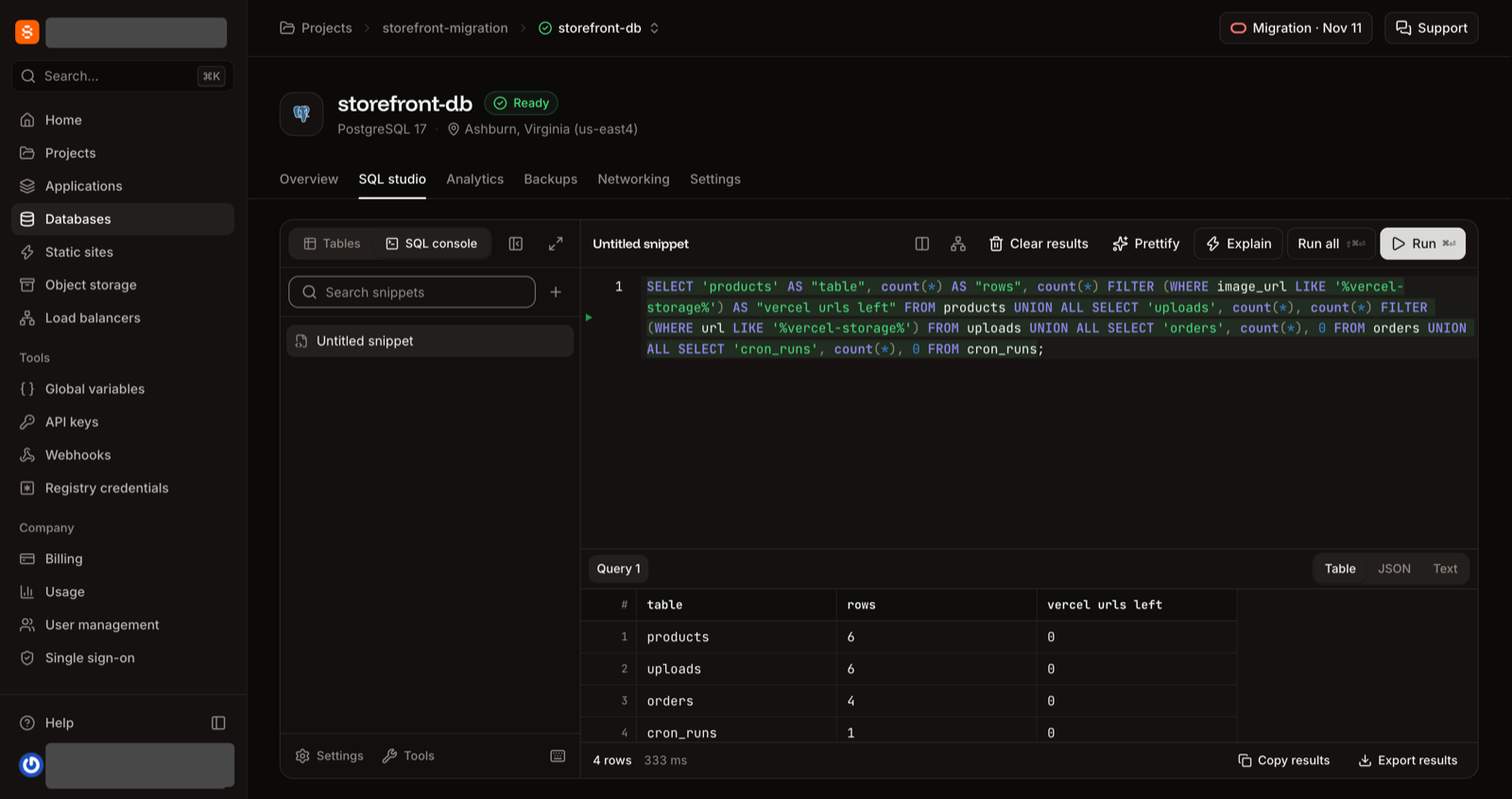
The studio only says OK for each statement; it doesn't show how many rows changed. So check with a query. The last column should be 0:
SELECT 'your_table' AS "table", count(*) AS "rows", count(*) FILTER (WHERE your_column LIKE '%vercel-storage%') AS "vercel urls left" FROM your_table
UNION ALL SELECT 'other_table', count(*), count(*) FILTER (WHERE other_column LIKE '%vercel-storage%') FROM other_table;
The check: row counts, and no Vercel addresses left in the last column.
On the application's Overview tab, click Deploy now under Recent deployments.
Check the Branch, then click Deploy.
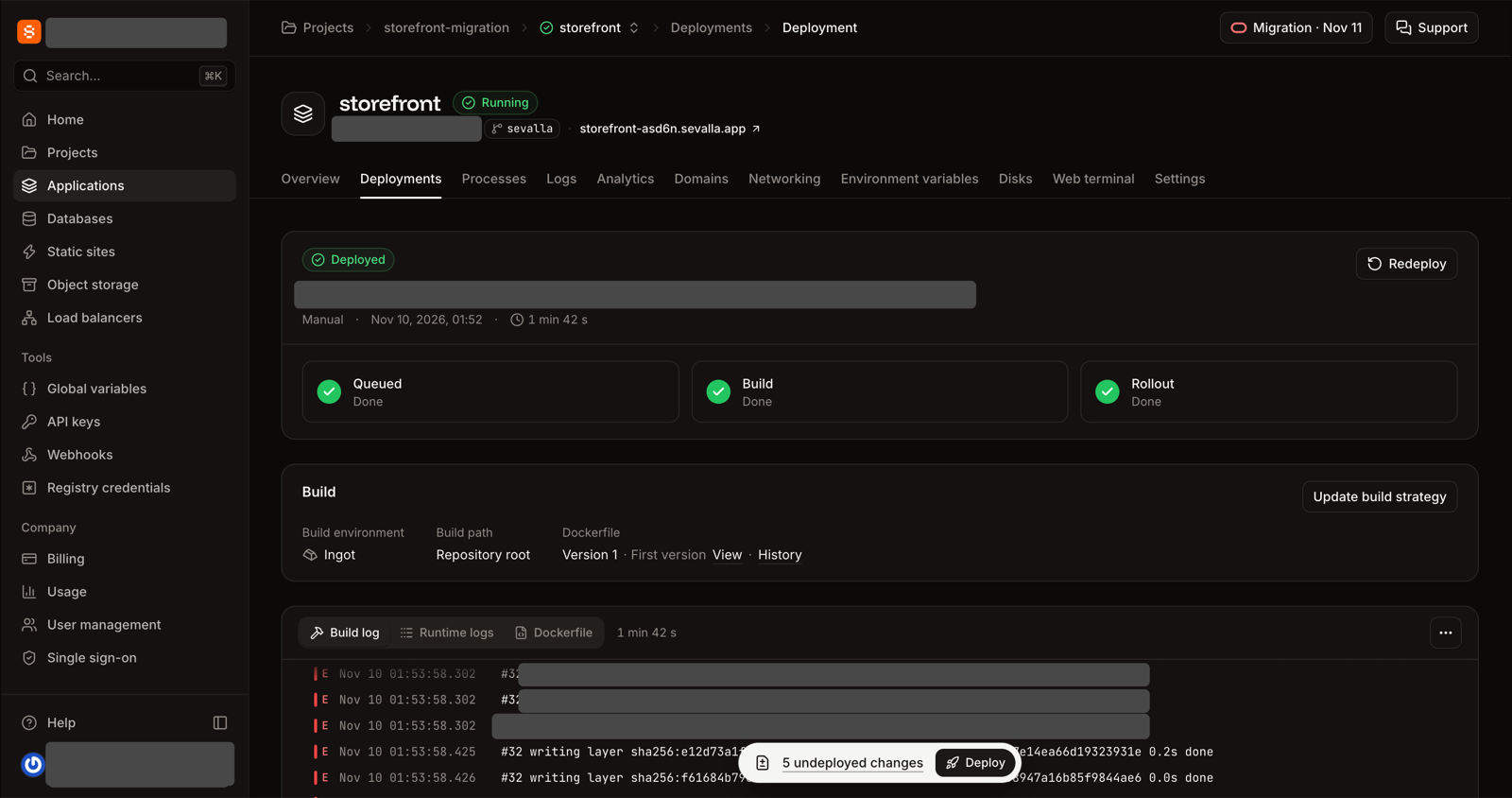
On the Deployments tab, wait for the status Deployed.
Ask your assistant for the rest (or do it in the dashboard: Deploy now on the Overview tab):
Red E lines in the build log are normal build output, not errors. The log lists the routes next build prerendered.
A finished deployment: Queued, Build and Rollout done.
Pages
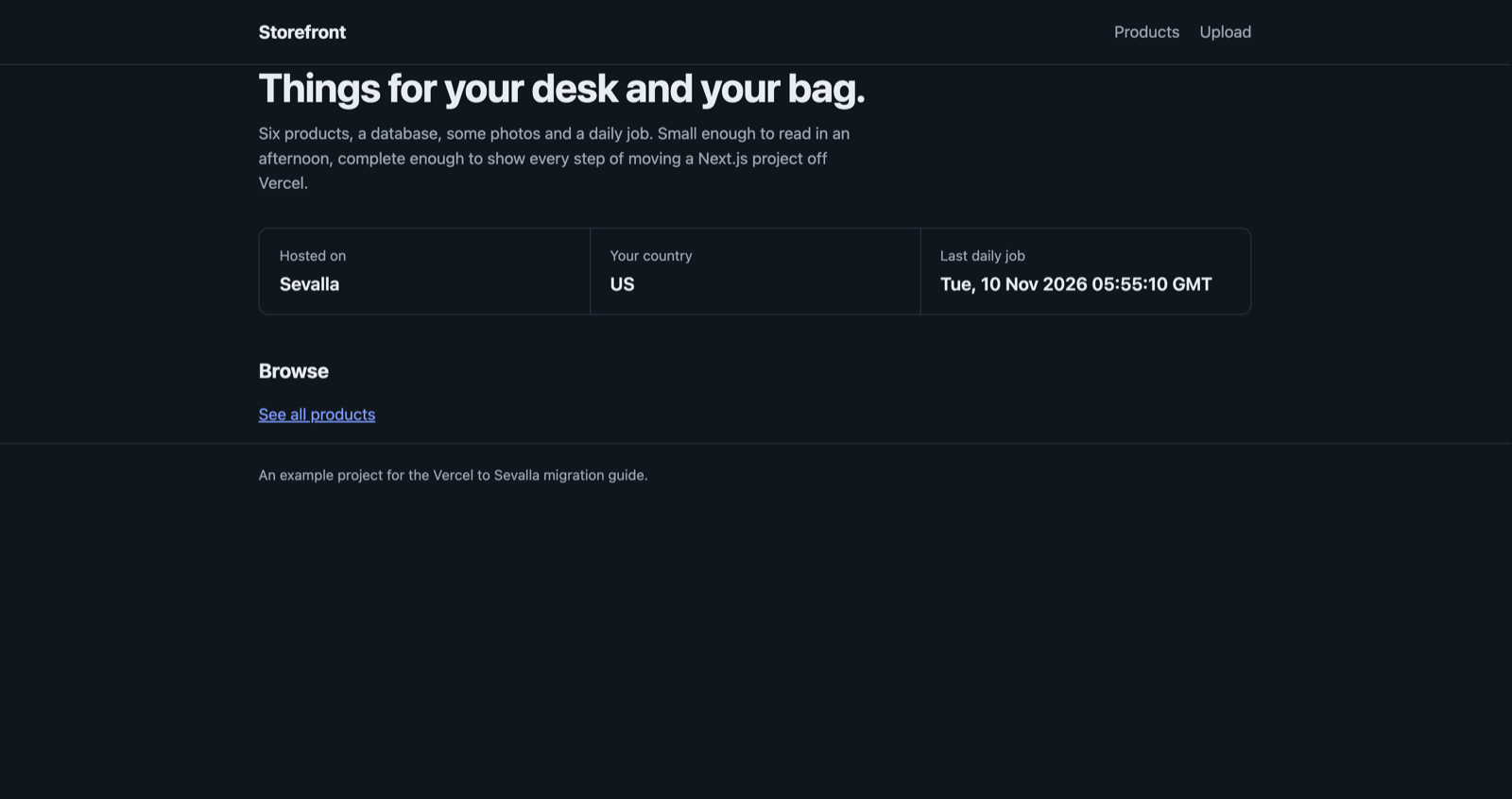
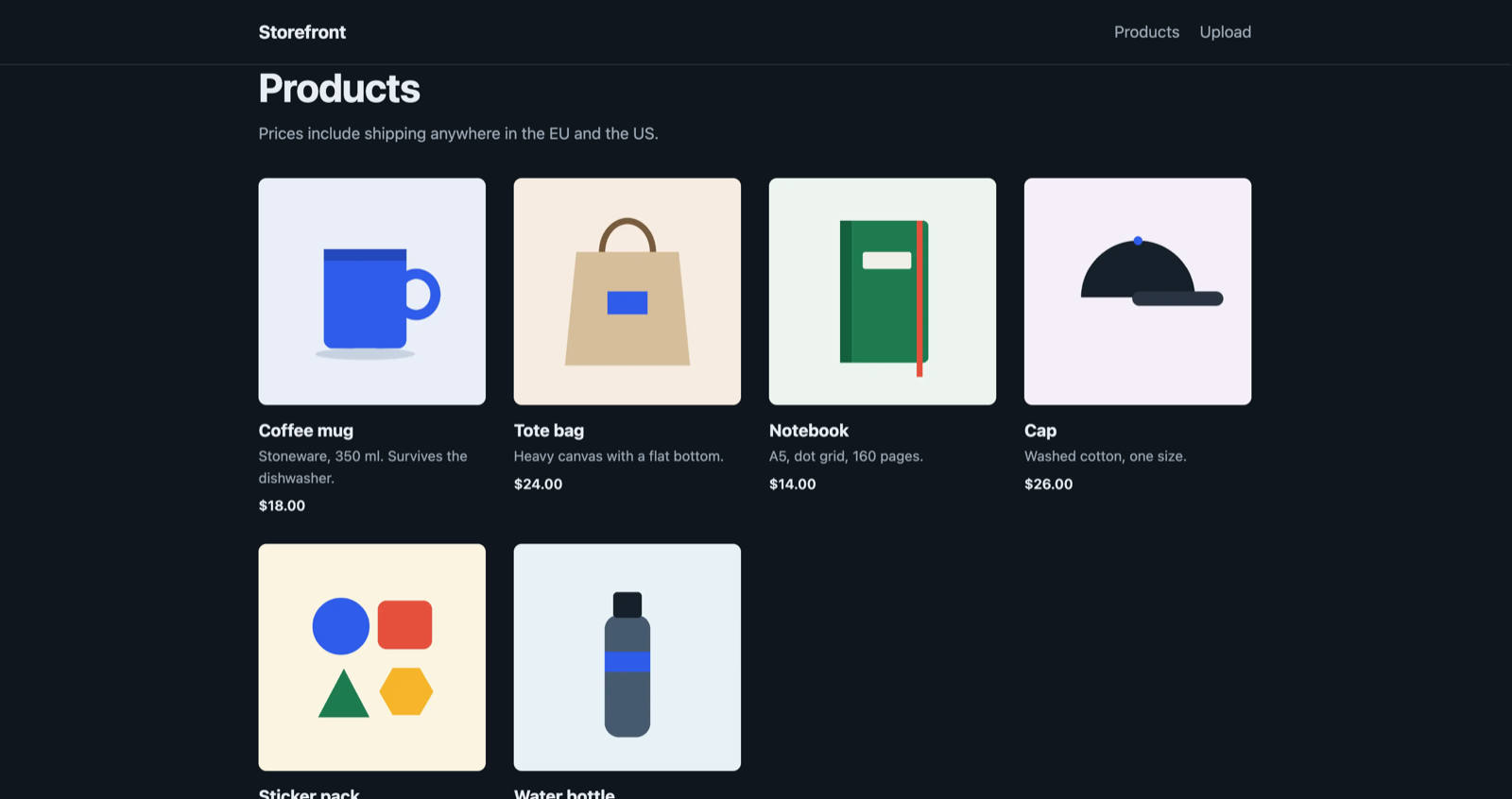
Open your app's pages on its sevalla.app address and check them. Vercel is paused now and answers every request with an error, so a side-by-side comparison only works in a practice run, while Vercel is still live. API responses should match what Vercel returned before, except the file addresses, which now point at the bucket. For the example shop:
Open
You should see
Your home page
It loads without errors
A page that shows data from your database
The same data you saw on Vercel, with its pictures loading from the bucket
Each redirect and rewrite you had in vercel.json
The same result as on Vercel (a redirect lands on its target; a rewrite shows the target's content)
Your cron route, opened in the browser
A refusal (status 401): the route wants its secret
Use your own page addresses. Vercel is the reference when it is still serving: open the same page on both and compare.
An example app's home page on Sevalla.
A page whose pictures are served from the bucket.
The cron job
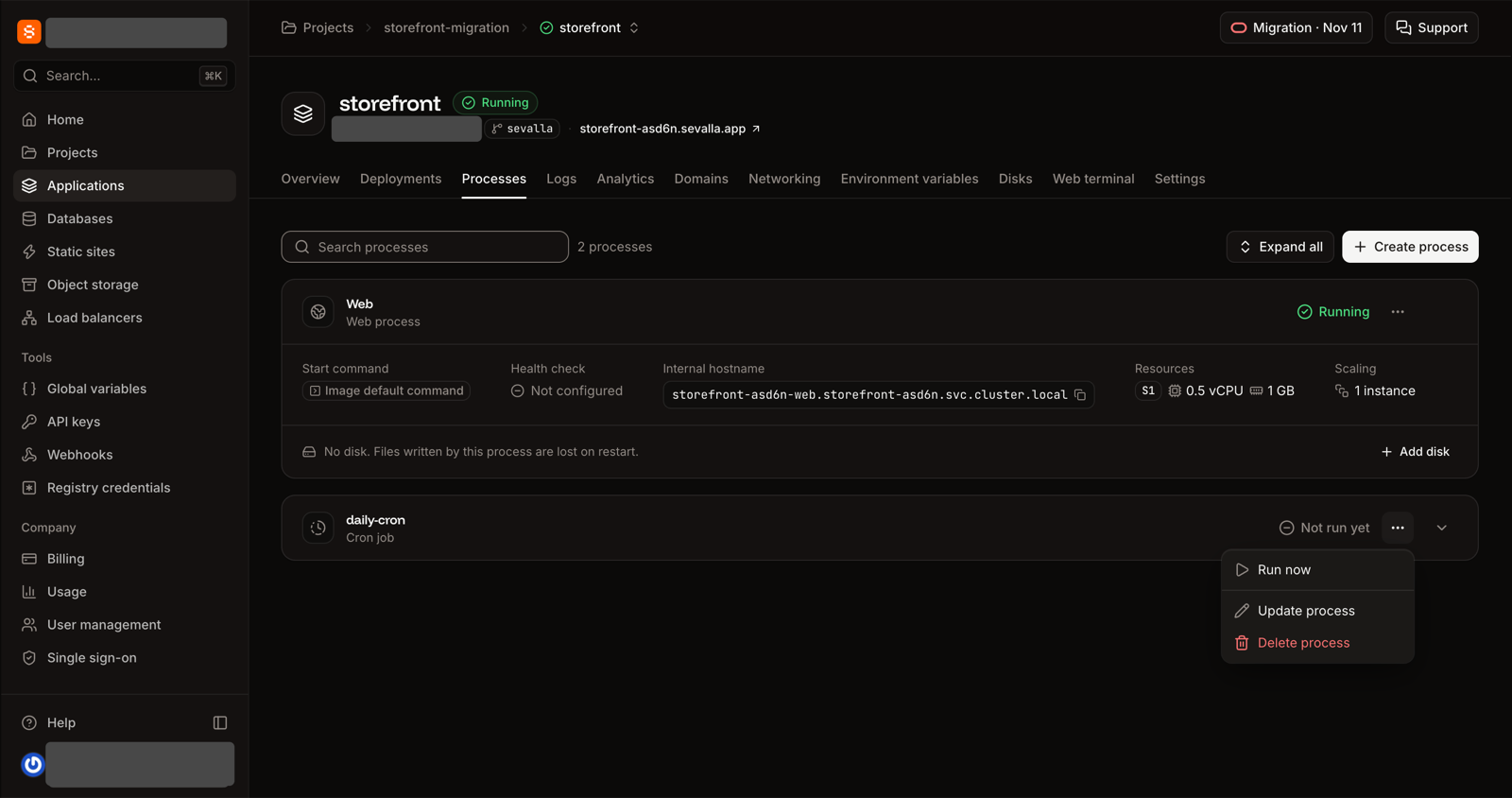
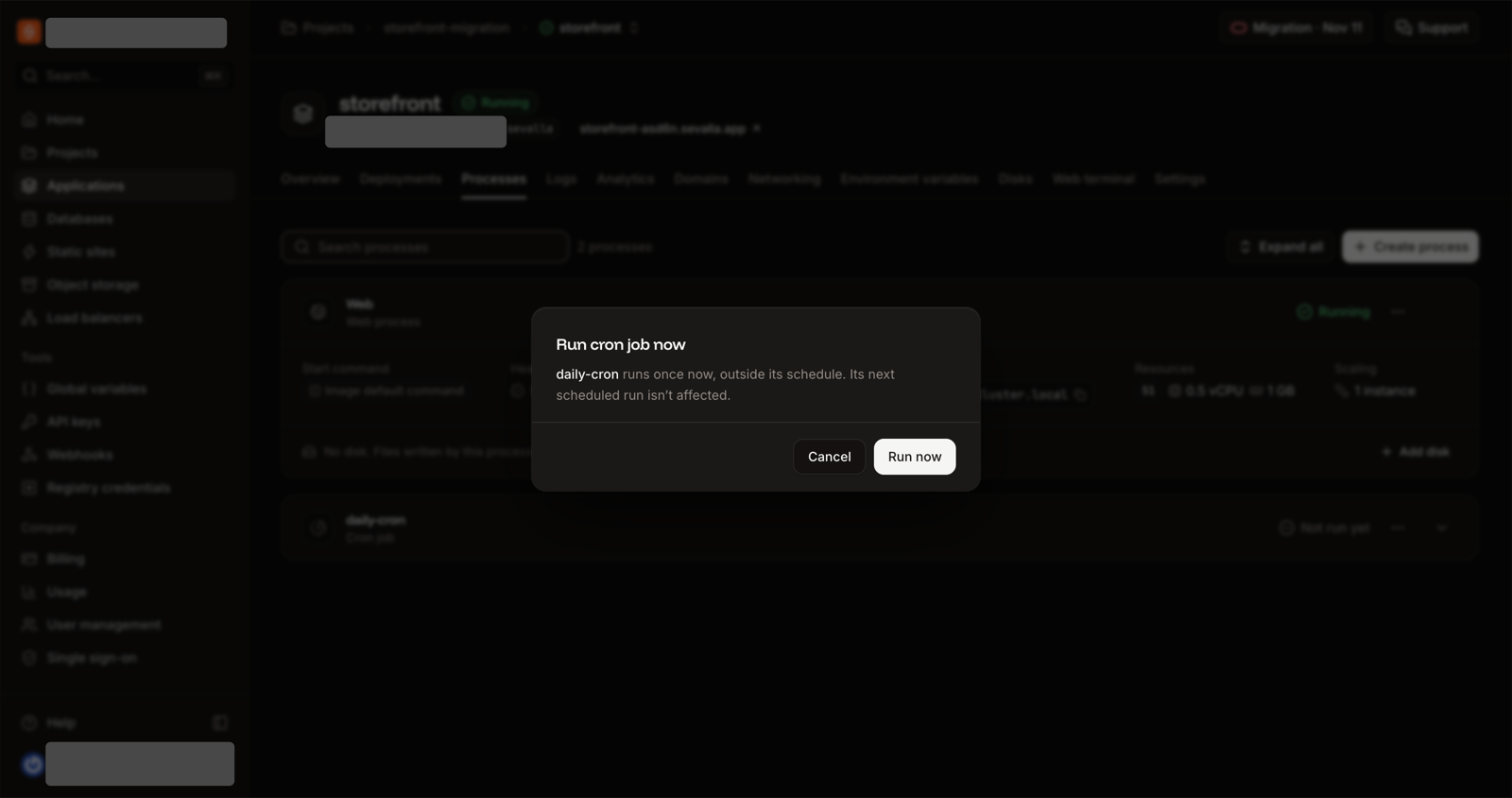
On the Processes tab, click ⋯ on the cron job, click Run now, then Run now in the dialog.
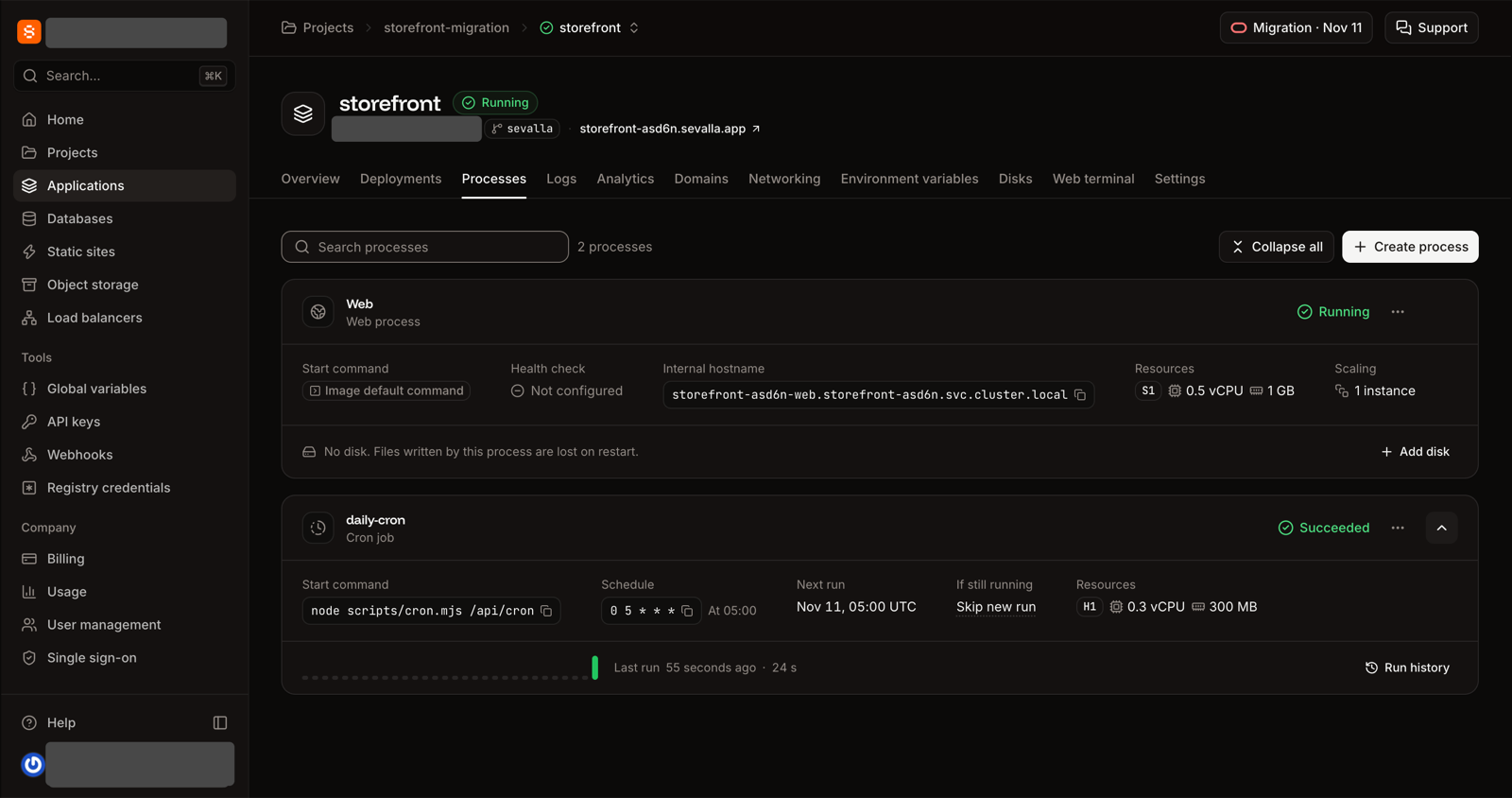
It takes about half a minute while Sevalla starts a container. The row shows Running and then Succeeded (reload the page if it seems stuck).
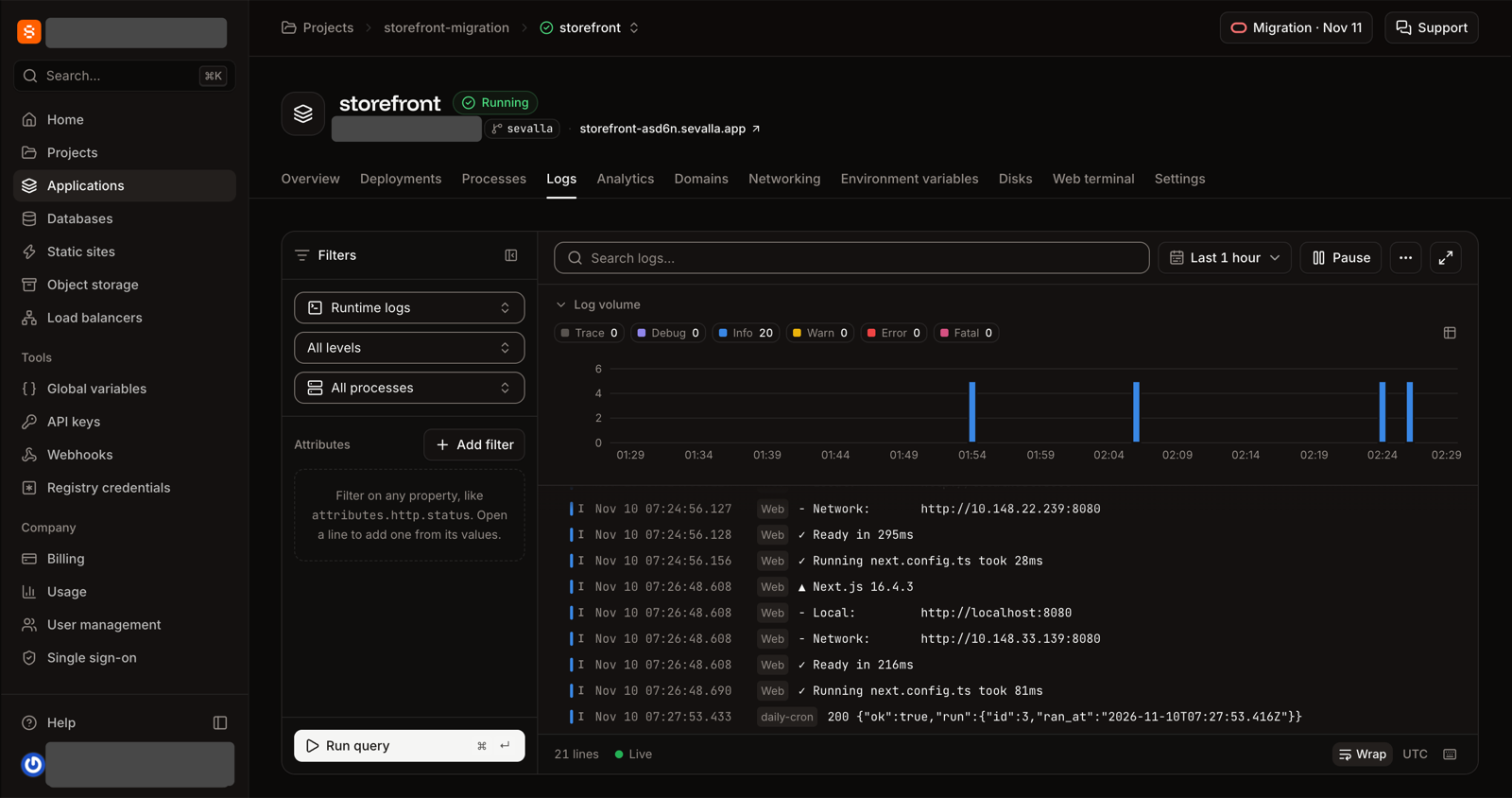
The Logs tab has the line your script printed, such as 200 {"ok":true,"run":{"id":2,…}}. A 401 means CRON_SECRET differs from the value your route checks.
The cron job's menu: Run now.
One confirmation.
Succeeded, with the schedule, next run and size.
The Logs tab: the line the script printed.
Your assistant ran the cron job in the previous step and showed you its log line. A 401 there means CRON_SECRET differs from the value your route checks.
Auto-deploy
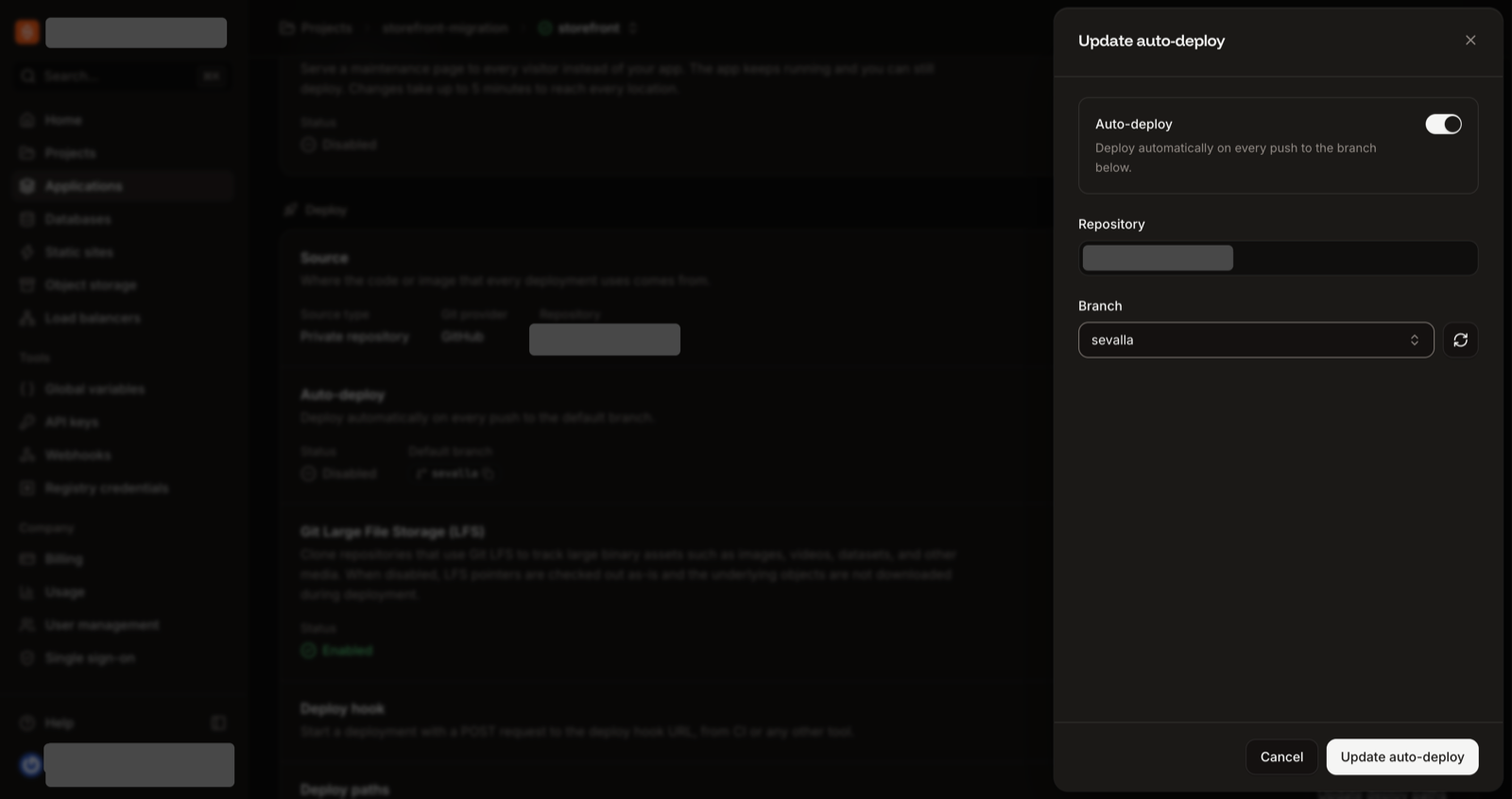
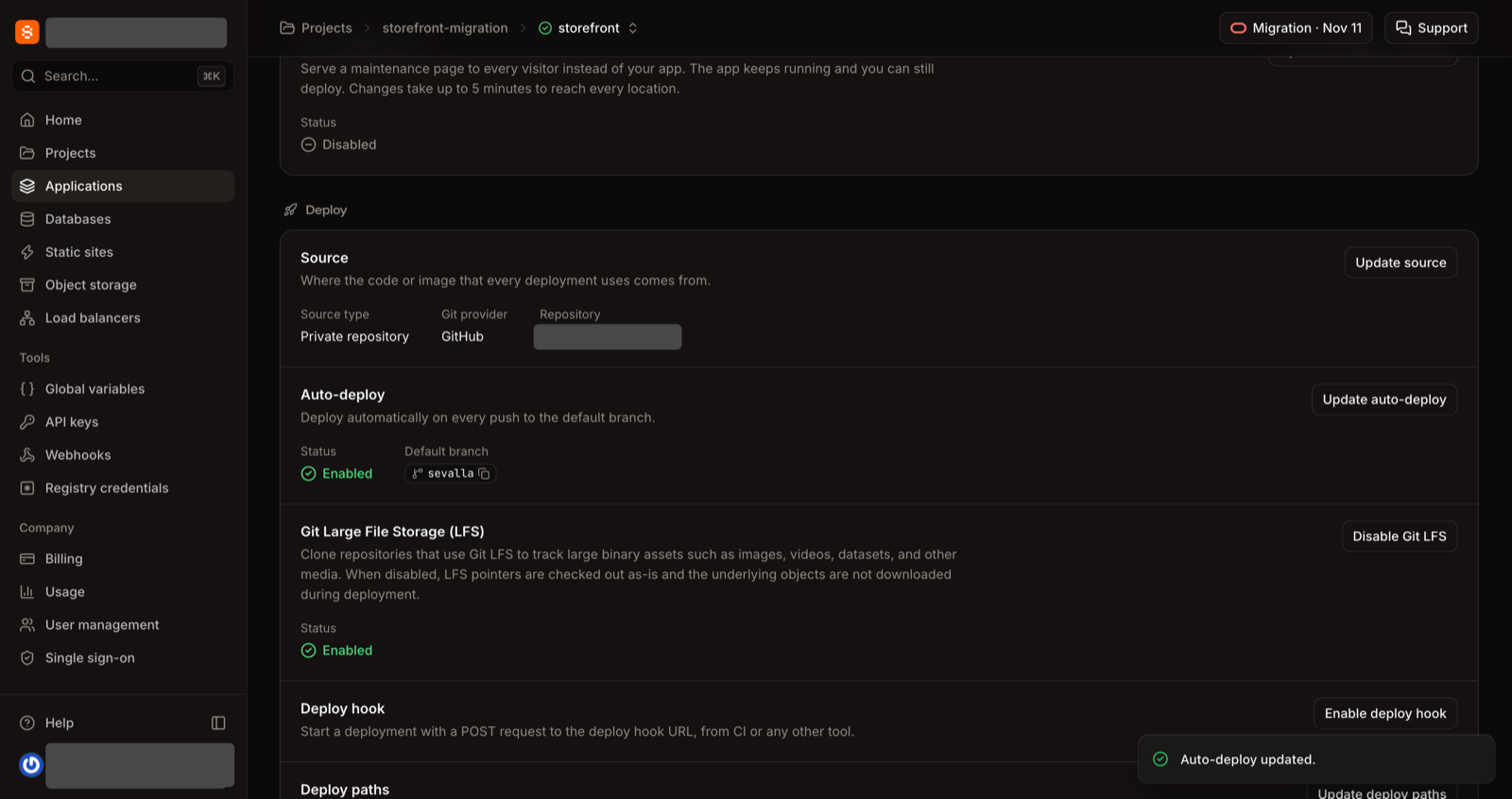
To deploy every push to the branch, click the application's Settings tab, then Update auto-deploy in the Auto-deploy section. Turn on Auto-deploy, choose the Branch, and click Update auto-deploy. While it is on, every push to that branch redeploys the app.
Update auto-deploy: the switch, the repository and the branch.
Saved: Auto-deploy is Enabled.
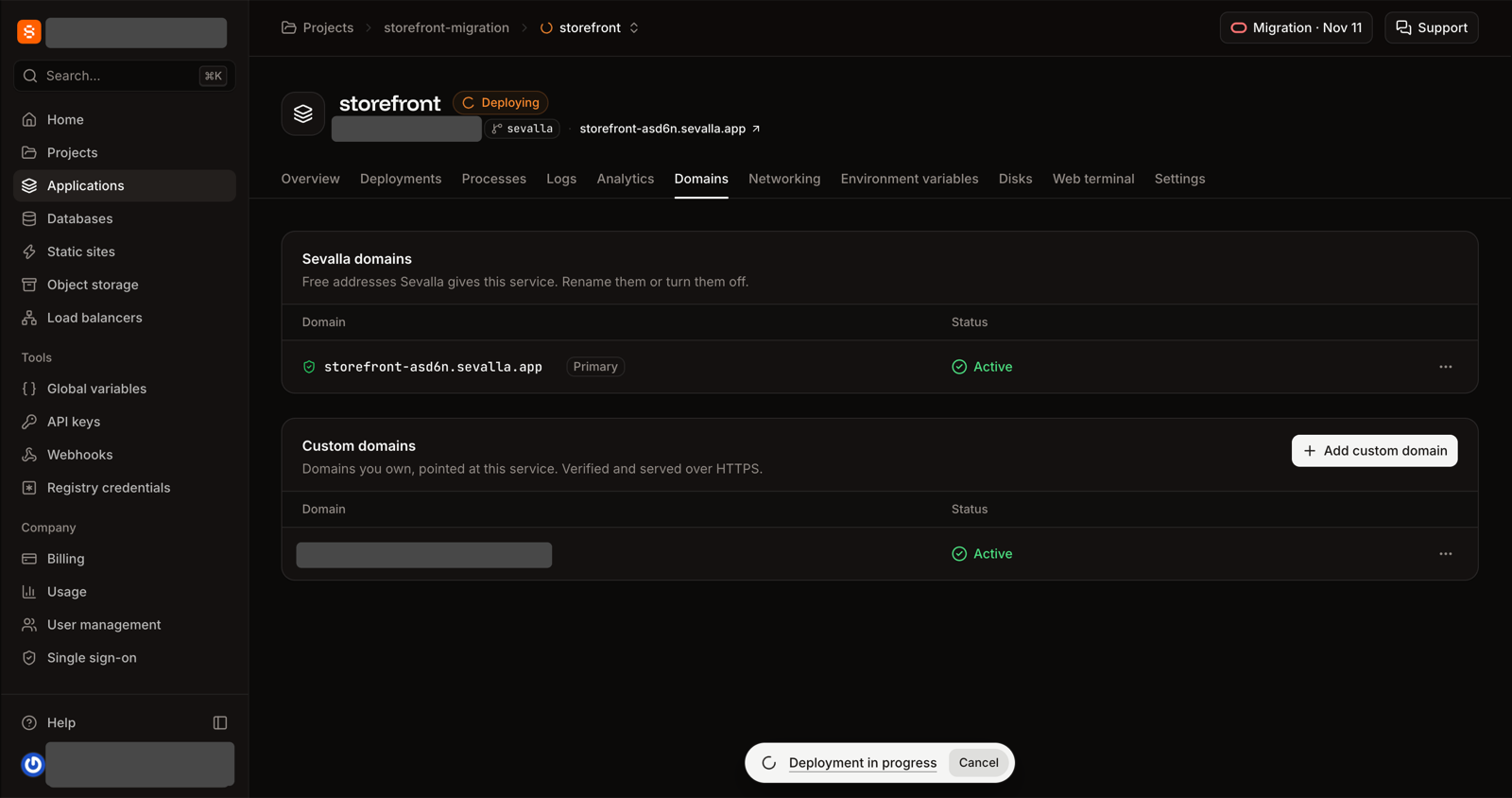
On the Domains tab, open the domain's DNS records and find the Point domain record.
At your DNS provider, replace the record that points at Vercel (an A record to 76.76.21.21, or a CNAME to a vercel-dns address) with the record Sevalla shows: an A record, or a CNAME if your DNS is on Cloudflare. Every A record of the domain must point at Sevalla.
Click Refresh records. When Sevalla sees the record, the status changes to Active.
Open the domain in a private window: Sevalla redirects http:// to https://.
On Vercel's DNS
You can't delete the record Vercel creates for the project: add the A record Sevalla shows and it overrides it.
On Cloudflare, this is where you add the CNAME
The one from . Add it as a DNS only (grey cloud) record until the domain is Active, and set the zone's SSL/TLS mode to Full or Full (strict) before you turn the proxy on.
The Domains tab: the custom domain is Active, next to the free sevalla.app domain.
Before , your domain still points at Vercel. Resume the project from the same Pause Project card in Vercel (the Pause dialog says you can resume at any time without redeploying), fix the problem, and try again. Run the restore with --clean --if-exists and again to start the copy over. Your Sevalla cron job is already scheduled by then; whatever it writes to the Sevalla database is replaced by that restore.
The Troubleshooting button at the top lists the errors we hit, by what you see.
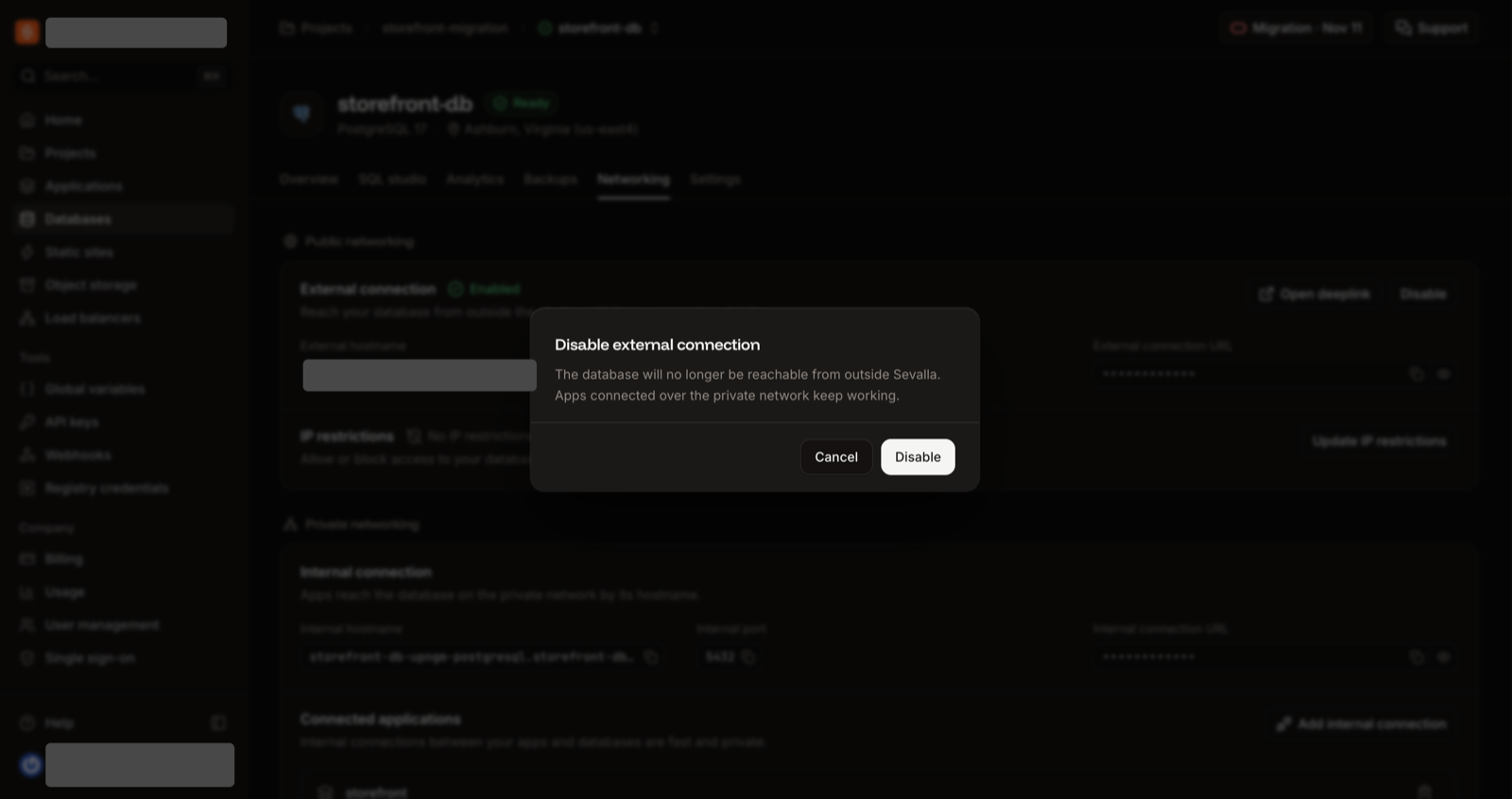
Close the database. In Sevalla, open the database's Networking tab, click Disable under External connection, then Disable in the dialog. Apps connected over the private network keep working.
Make the branch your production branch. Merge sevalla into your production branch on your Git host (a pull request and Merge), then choose that branch in the application's Auto-deploy settings. Do this only now: the merge removes vercel.json from your production branch, and Vercel still reads it until the project is gone.
Remove the domain from Vercel. In the project's Domains page, remove it. Your DNS is on Vercel's nameservers, so keep the domain in your Vercel account: removing it from the account also removes its DNS records.
Keep vercel.dump until you no longer need it.
Delete the old project, in this order.
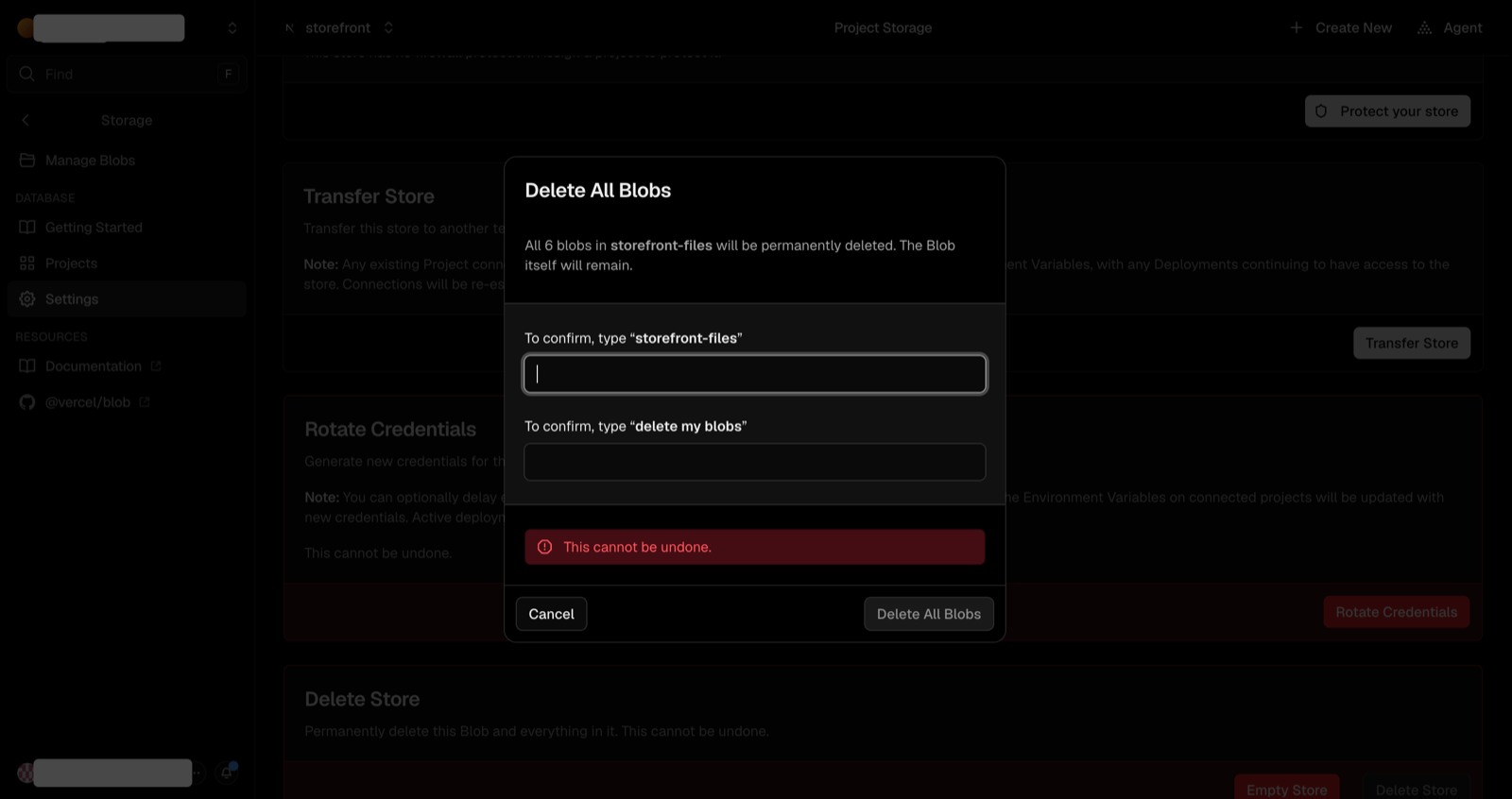
The Blob store first: open it, click Empty Store (a store that still has files can't be deleted), then Delete Store.
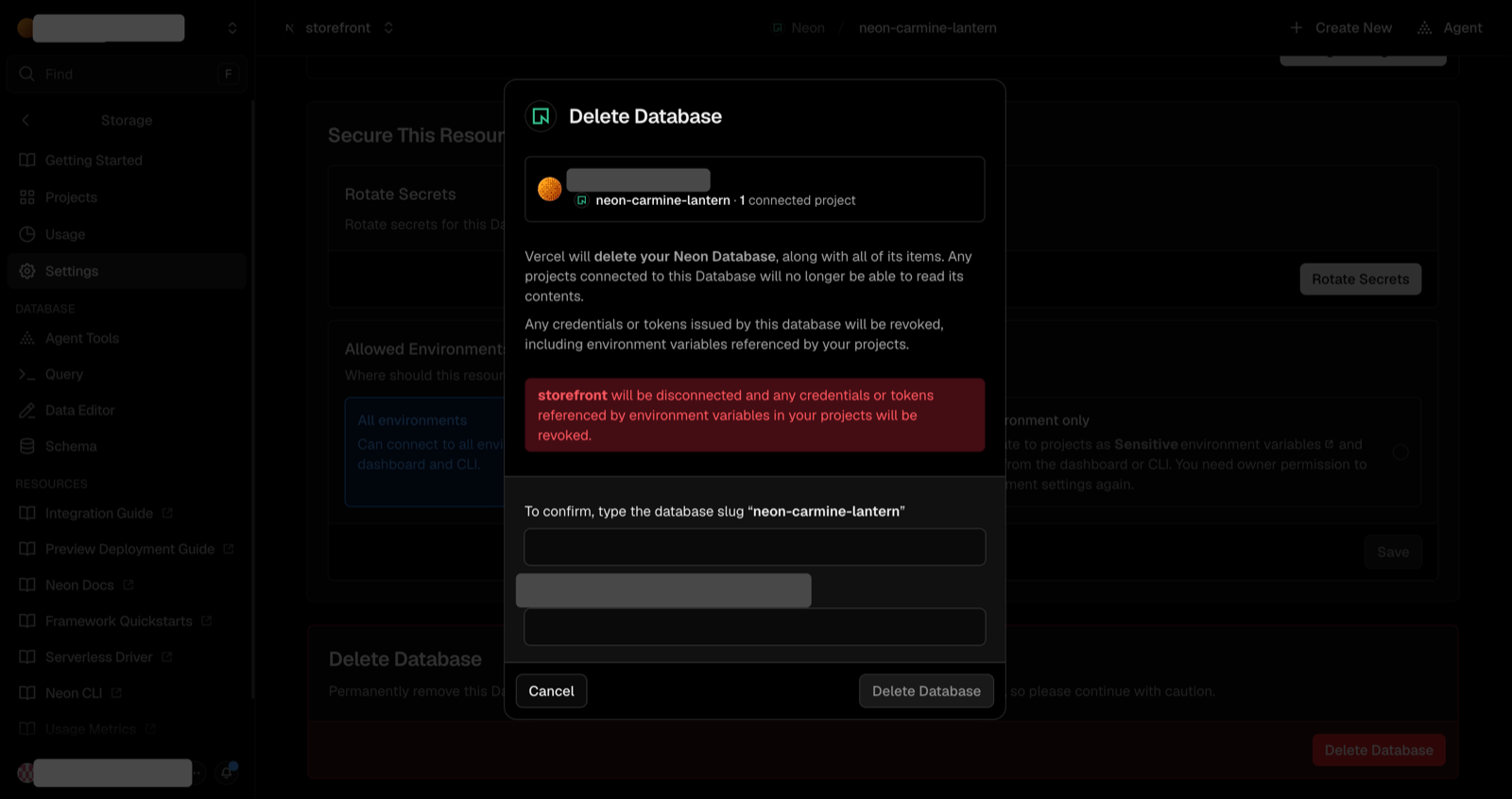
Then the Neon database, from Vercel (Storage, the database, Settings, Delete Database), not from the Neon console.
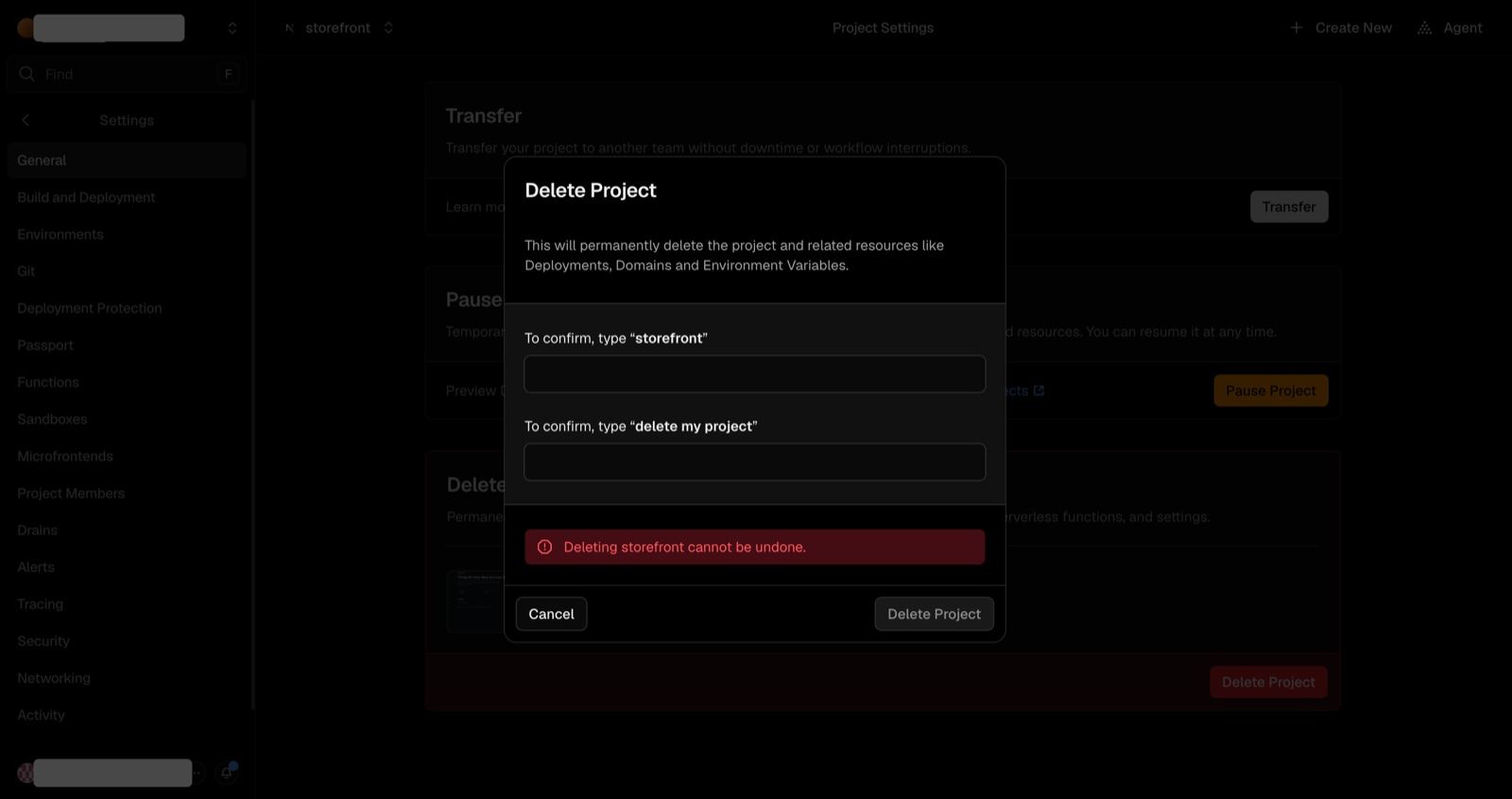
Then the project (Settings, General, Delete Project).
Deleting the project doesn't delete the Blob store or the Neon database, and deleting a store or database deletes its data. If nothing else in your Vercel account uses Neon, you can also remove the Neon integration in Vercel's Integrations settings.
The database's Networking tab: External connection, with Disable.
The confirmation: apps on the private network keep working.
Vercel's Delete Project dialog.
A Blob store must be emptied before it can be deleted.
Deleting the Neon database, from Vercel.
Beyond the baseline
This route covers the common move. Sevalla's technical guide goes deeper on the rest:
Another database than Neon (Supabase, Prisma Postgres, another Marketplace Postgres): the steps are the same with that provider's connection string and tools. Check it for extensions (pgvector, PostGIS): turn them on when you create the Sevalla database, because you can't add them later.
Other Vercel services (KV, Edge Config, Upstash Redis): Redis or Valkey databases exist on Sevalla; Edge Config has no equivalent: use environment variables or the database.
More than one instance of your app: see the Redis link above.
The build fails with Error occurred prerendering page and relation "…" does not exist
next build reads your database, and the data isn't restored yet
Restore the data (), then deploy again. If the error is a connection error, make sure DATABASE_URL shows Build & Runtime on the Environment variables tab
pg_dump stops with a server version mismatch
Your PostgreSQL tools are older than the Neon database
Use tools at the Neon version or newer
pg_restore: error: could not execute query: ERROR: schema "public" already exists
The dump includes CREATE SCHEMA public (a dump made with --schema=public does)
Ignore it: the tables restore
server does not support SSL, but SSL was required
You added sslmode=require to the Sevalla connection
Remove it
Images still come from Vercel's address
You restored the database again after the rewrite
Run again
Images answer 400 with "url" parameter is not allowed
The bucket's domain isn't in images.remotePatterns
Add *.sevalla.storage as in , then deploy
The panel says "This key already exists on the application"
DATABASE_URL is already set
Delete the old variable, reload the panel ()
Values show quotes, such as "My Shop"
You typed the quotes into the form's value box
Click ⋯ on the variable, then Update, and remove the quotes
The cron job never runs
It was created but the application wasn't deployed after
Click Deploy ()
The cron job's log shows 401 Unauthorized
CRON_SECRET differs from what the route checks
Set the same value, then deploy
The cron job says Running for a long time
The page hasn't refreshed
Reload; the run takes about half a minute
My domain shows an error for a few minutes after adding it
The certificate isn't ready yet
Wait for Pointing or Active and click Refresh records
The SQL studio shows a list of snippets and no editor
The browser window is too narrow
Make it wider
Instances show different versions of a page
Each instance has its own Next.js cache
Run one instance, or see the Redis link at the end of the route